
Security and verification
Change your password and manage supported verification methods.
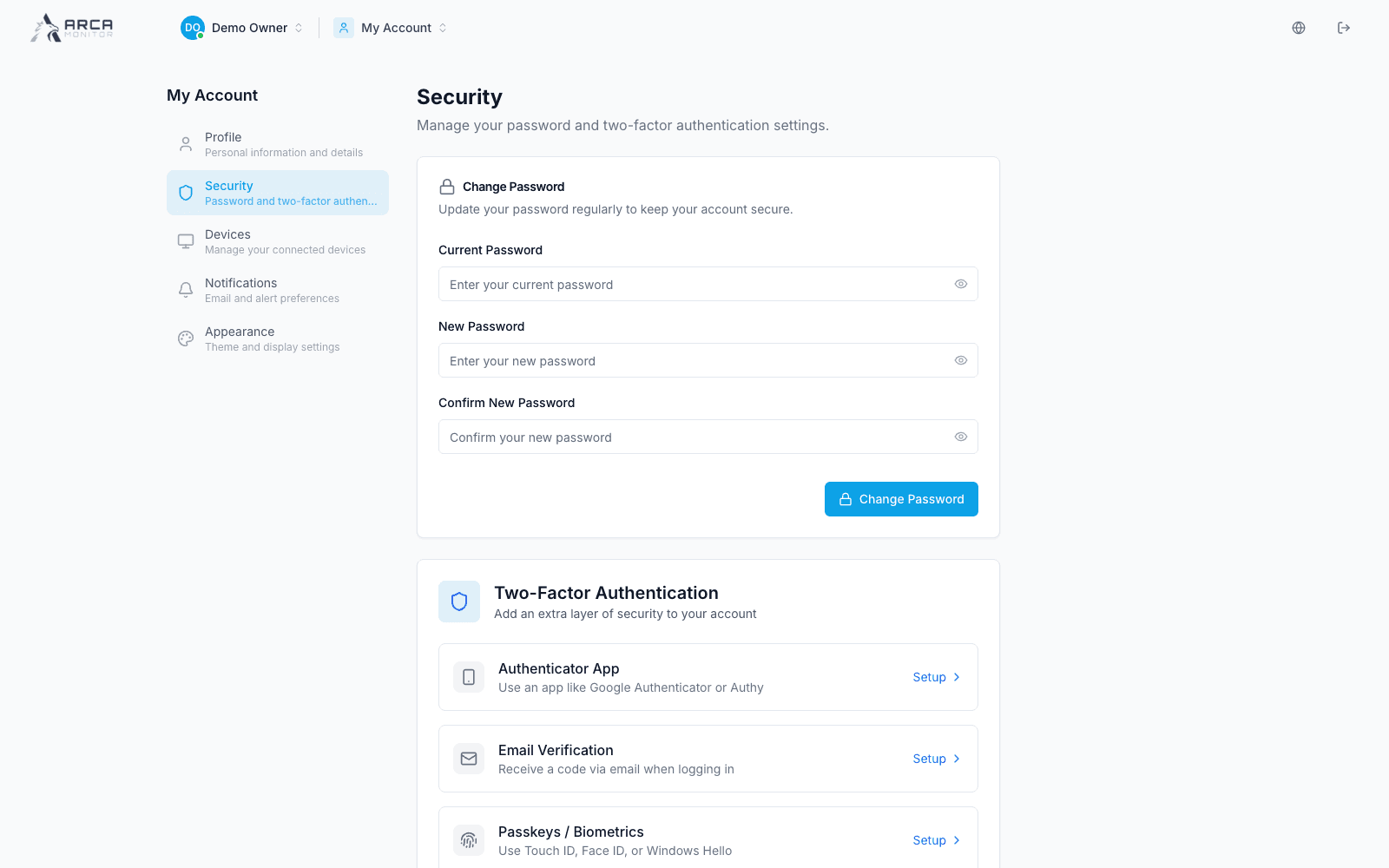
Open My Account → Security. The page separates password changes from two-factor authentication.
Change your password
- Enter Current Password.
- Enter the new password and repeat it in Confirm New Password.
- Read the validation messages, then select Change Password.
- Confirm the success message. Use the new password at the next sign-in.
A rejected confirmation does not change the password. If you cannot remember the current password, use the password recovery procedure.
Add a verification method
The reviewed interface offers Authenticator App, Email Verification, and Passkeys / Biometrics, each with a Setup action when unconfigured. Choose the method your organization supports and complete the challenge shown by its setup flow. Starting setup is not the same as enabling the method: return to this page and verify its status afterward.
Authenticator setup can display a secret or QR code. Store recovery material using your organization's approved process. A passkey uses the browser/device's verification prompt. Email verification requires access to the configured mailbox.
At sign-in, use only the methods offered by your account's challenge. See Sign in.