
Screens and actions by role
Compare the actual interface for nine DEMO SA roles.
What determines access
Your membership identifies the workspace and its active, invited or suspended status. Your role supplies permissions within that workspace. Owner is a separate membership property. Installed applications, action-specific permissions, record state, assignment and independent-review rules can all affect available actions.
Role names are descriptions, not universal permission contracts. Administrators can customize roles. These examples use DEMO SA's actual configuration reviewed on October 7, 2026.
Role reference
| Role | Purpose in the reviewed workspace | Important distinction |
|---|---|---|
| Owner | Organization administration and full workspace access | Includes ownership transfer; separate from platform administration. |
| Admin | Workspace administration through the wildcard * permission | Does not make the account a platform administrator or Owner. |
| MLRO | Compliance supervision, decisions, reviews and regulatory reporting | Includes file_sar in this workspace. |
| Compliance Officer | Compliance operations, alert/case review and report preparation | Does not include file_sar in this workspace. |
| Senior Analyst | Investigation, escalation and authorized review | Has more decision and review permissions than Analyst. |
| Analyst | Analysis, assigned review and permitted transaction actions | Proposing a review differs from approving or resolving it. |
| Auditor | Read-oriented inspection, audit information and permitted exports | Export access does not grant decision rights. |
| Viewer | Basic consultation of profiles, transactions, alerts and reports | Alert export is disabled; case reads were denied. |
| Channel Guest | Limited collaboration through TAG | A workspace-specific role; the launcher shows TAG only. |
The compliance tier is another field used by some workflows. In these examples Admin/MLRO use tier 3, Senior Analyst/Compliance Officer tier 2, and the remaining named roles tier 1. Owner retains ownership access. Tier does not replace the action's permission or independent-review requirements.
Compare actual screens
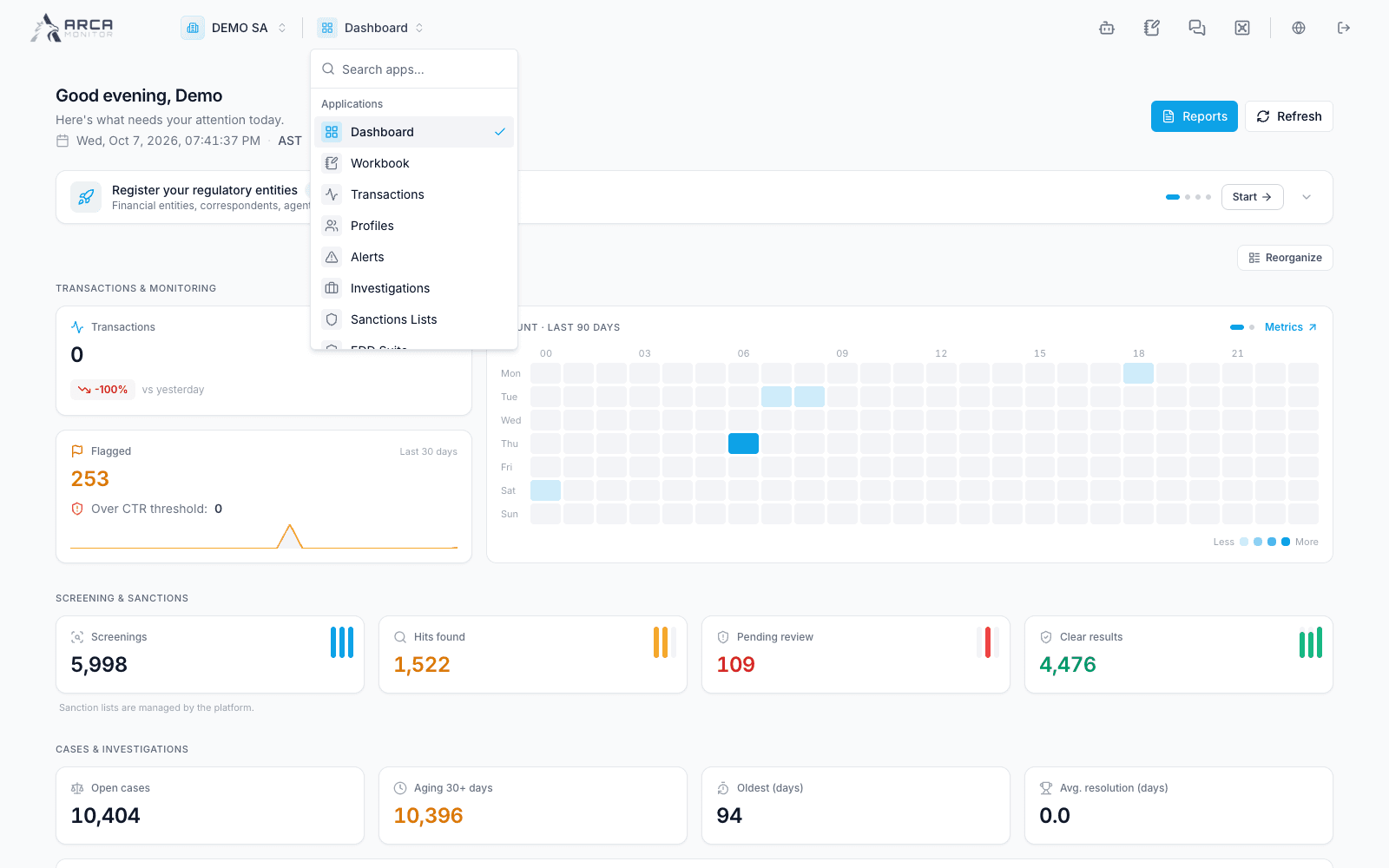
Choose a role and a screen. The images come from separate fictional accounts in the same DEMO SA workspace, using the normal local development environment. They show observed visibility without simulated permission filters.
Captured with a fictional account assigned this role. Permissions and record state determine the available actions.
Interpret unavailable actions
- A disabled control cannot be used in the current context. Read its explanation and check the record state.
- A visible control can still require authorization when submitted. Some invitation and case-creation controls remain visible to roles without that authority in the reviewed build.
- An application in the selector does not guarantee access to every resource. Viewer sees Investigations, but its current role cannot read cases.
- A reviewer needs the appropriate authority and must meet independence rules. Assigning a record does not grant approval authority.
- If a page denies access or cannot load a protected resource, ask the Owner/Admin to review your role.
Check your own role
Open Workspace settings → Members, find your account, and check its role and status. An authorized administrator can inspect Roles & Permissions and the actual selected permissions. Describe the task you need to perform so they can choose the necessary access.
Role changes affect that membership in the selected workspace. Personal profile settings do not change permissions. Continue with Members and roles.