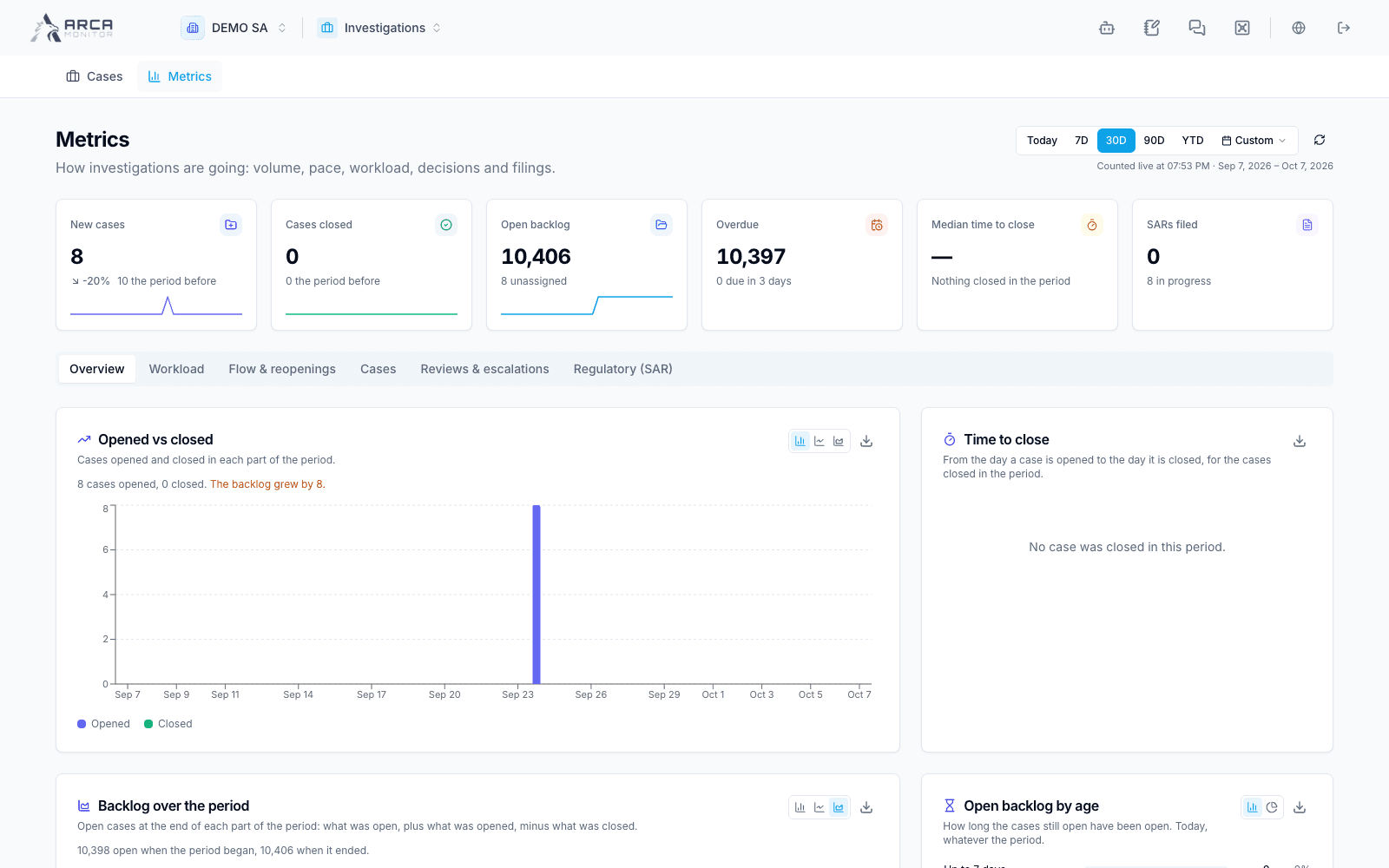
Investigation metrics
Use case measures to locate bottlenecks and return to the underlying work.
Open Metrics from the Investigations menu. Choose the available time window and refresh, then read case counts, distributions, and performance panels in their stated context.
Read the numbers with their scope
Separate current backlog from cases created or closed during a period. Review status, priority, and case-type distributions before interpreting workload. A pending-review case can still be open even though the analyst has completed a conclusion.
Where a metric provides a drill-down, open it and inspect the destination filters. Reconcile unexpected totals against the Cases page’s date window, quick view, assignee, and explicit filters. A saved view or hidden column does not change the meaning of the case’s underlying status.
Act on a finding
For overdue work, open the case, check its owner and blocking requirement, and coordinate a reassignment or review through the permitted workflow. For review bottlenecks, use Workbook approvals and the case’s Decision area. Do not close cases merely to reduce the backlog count.
If a panel fails, refresh or retry it before using the number in a report. Preserve the selected period and scope when reporting a metric to another workspace member.