
Workspace identity
Manage organization details, filing identity and workspace branding.
Open the correct organization
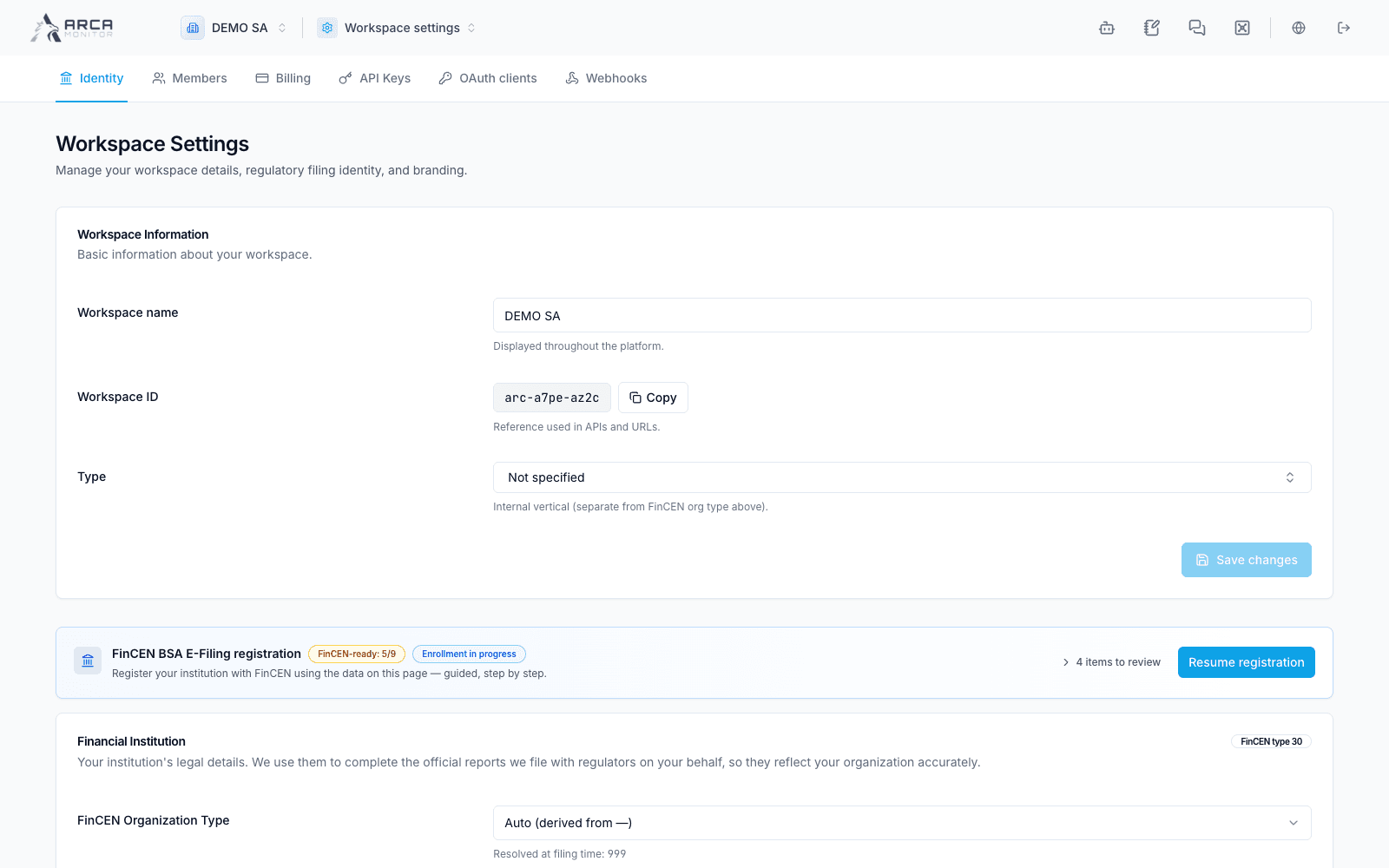
Open the workspace selector, locate your workspace (DEMO SA in this example), and choose its settings button. Select Identity. Confirm the workspace name and ID before editing.
Workspace information
Workspace name is the label shown throughout the application. Workspace ID is the reference used in URLs and integrations; use Copy when you need to share it with your integration team. Type describes the workspace's internal business vertical. Save changes in this card after editing.
Financial institution and filing identity
The institution section groups the organization type, primary regulator, tax identifier, RSSD ID, address, and BSA compliance contact. Use the organization's verified information. The internal workspace Type and the FinCEN organization type are separate fields.
- Select the organization type and regulator that apply to the institution.
- Review the identifier type and enter a replacement only when required. The identifier field explains when leaving it blank preserves the existing value.
- Complete the address and the BSA contact's name, title, phone and email.
- Choose Save Filer Identity and check the result.
The registration card shows completion progress and Resume registration when enrollment is in progress. Its count is a checklist indicator; completing fields does not by itself confirm enrollment or successful filing.
Transmitter and branding
BSA E-Filing Transmitter contains the transmitter control code and the third-party transmitter choice. Use Save Transmitter for that section. These details are intended for the people responsible for your institution's filing setup. Enter only the assigned values; this guide does not supply a production transmitter code.
Use the logo avatar to select an image. The interface recommends a 256 × 256 PNG or JPG. Verify the resulting image in the workspace header.
Workspace deletion
The deletion area removes the workspace and its records, including profiles, transactions, cases, reports and configuration. It requests password confirmation. Use this action only under your organization's authorized decommissioning process; it is not an option for clearing a filter or removing a single member.
Application-specific rules and thresholds live in Governance → Operational settings. They are separate from organization identity.