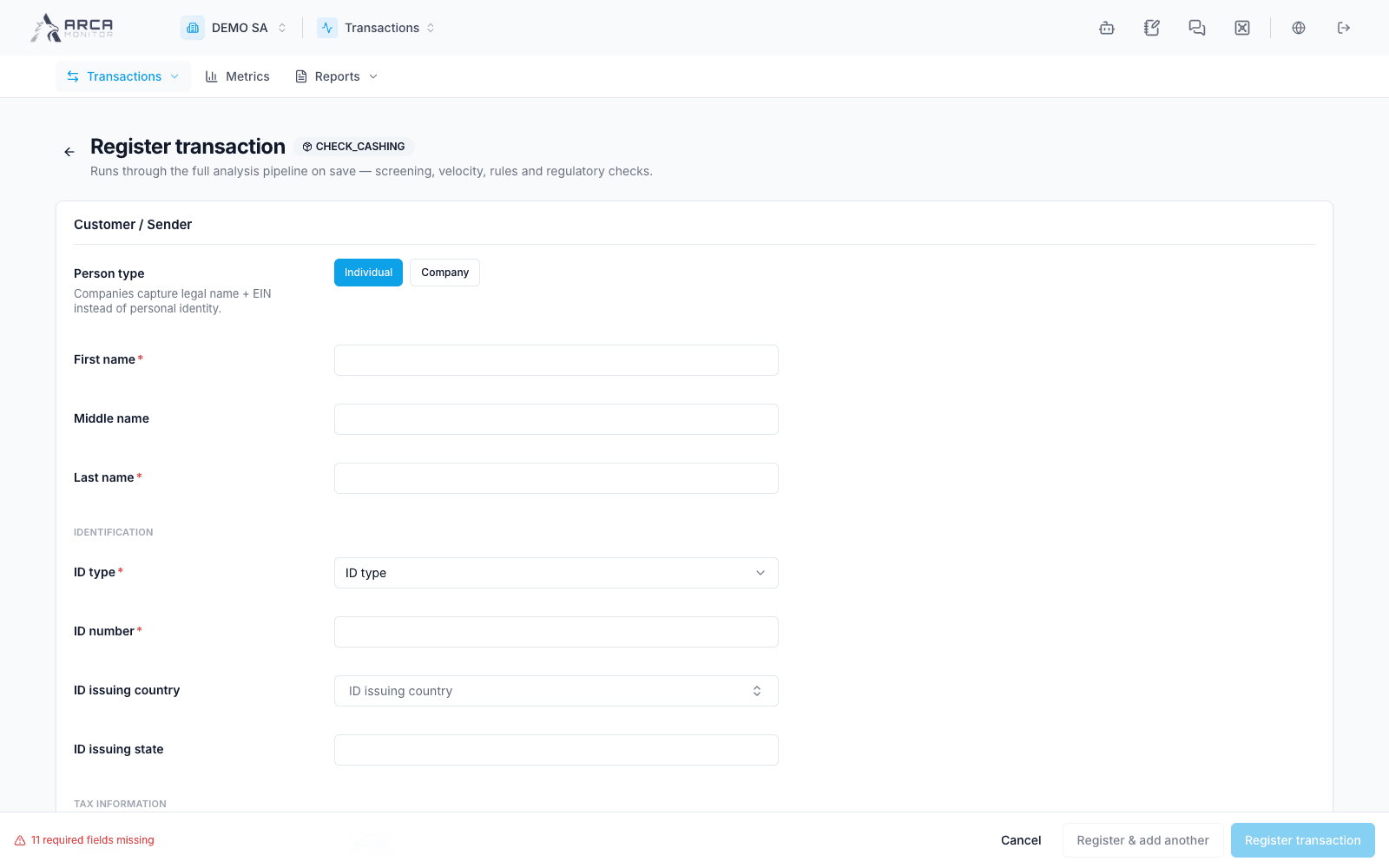
Register a transaction
Create a manual transaction using the form for the selected product.
Manual registration is intended for one operation at a time. For a dataset, use Import transactions.
Before you begin
Confirm that manual registration is enabled and that you have access to the action. Have the source record available, including the product, transaction date, amounts and currencies, and the identification information for its participants.
The form is built for the selected product. Required parties and fields can differ between products, jurisdictions, and individual or business participants. Use the requirements shown on your form; there is no universal list of fields that fits every operation.
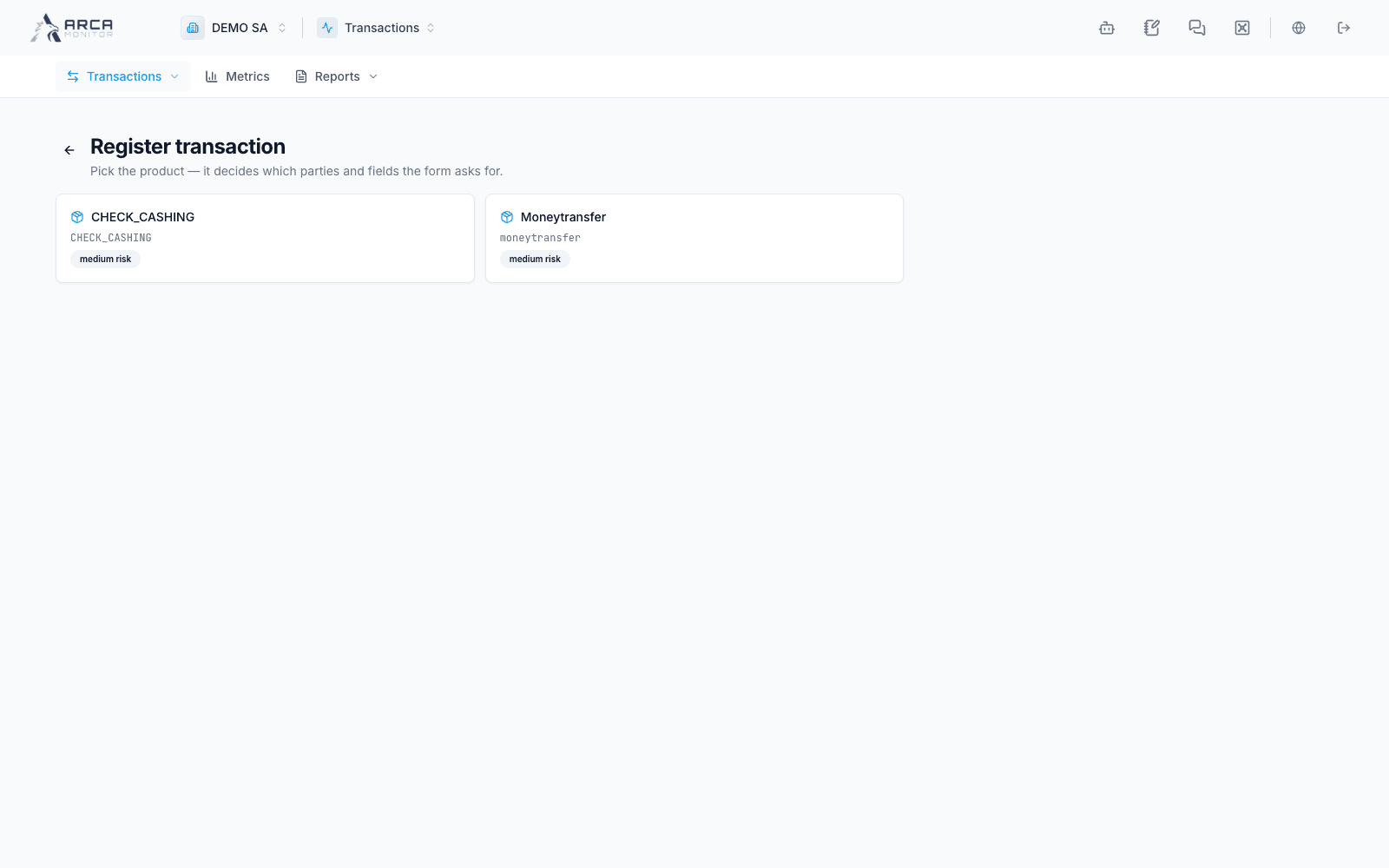
Choose the product
Open the manual-registration form provided to your role. In the local version reviewed, the transaction list does not expose a New button; the form is available at /<workspace>/monitoring/transactions/new. Select the applicable product before entering its details. If no products are offered, ask the workspace administrator to review product configuration.
Enter the operation and its participants
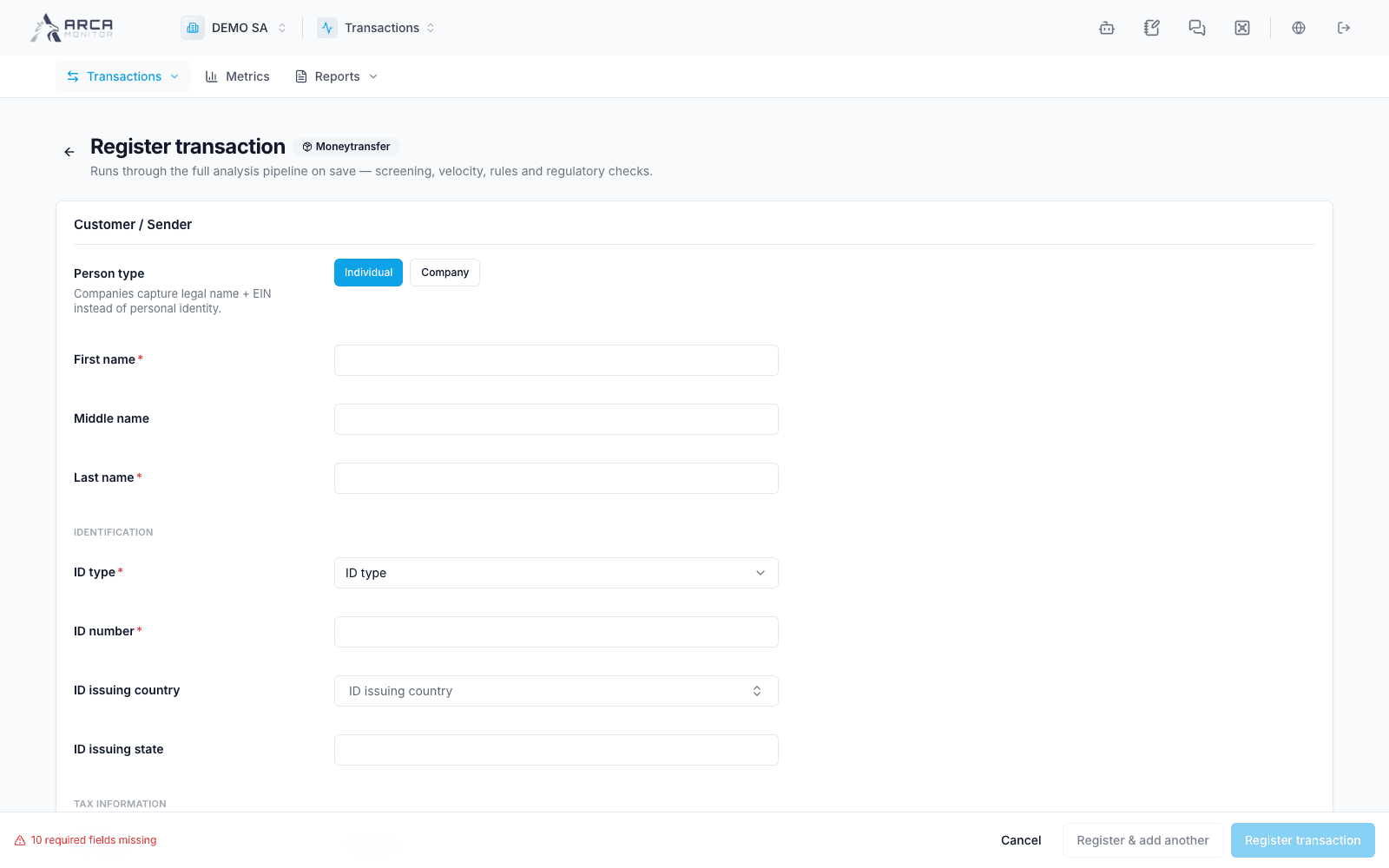
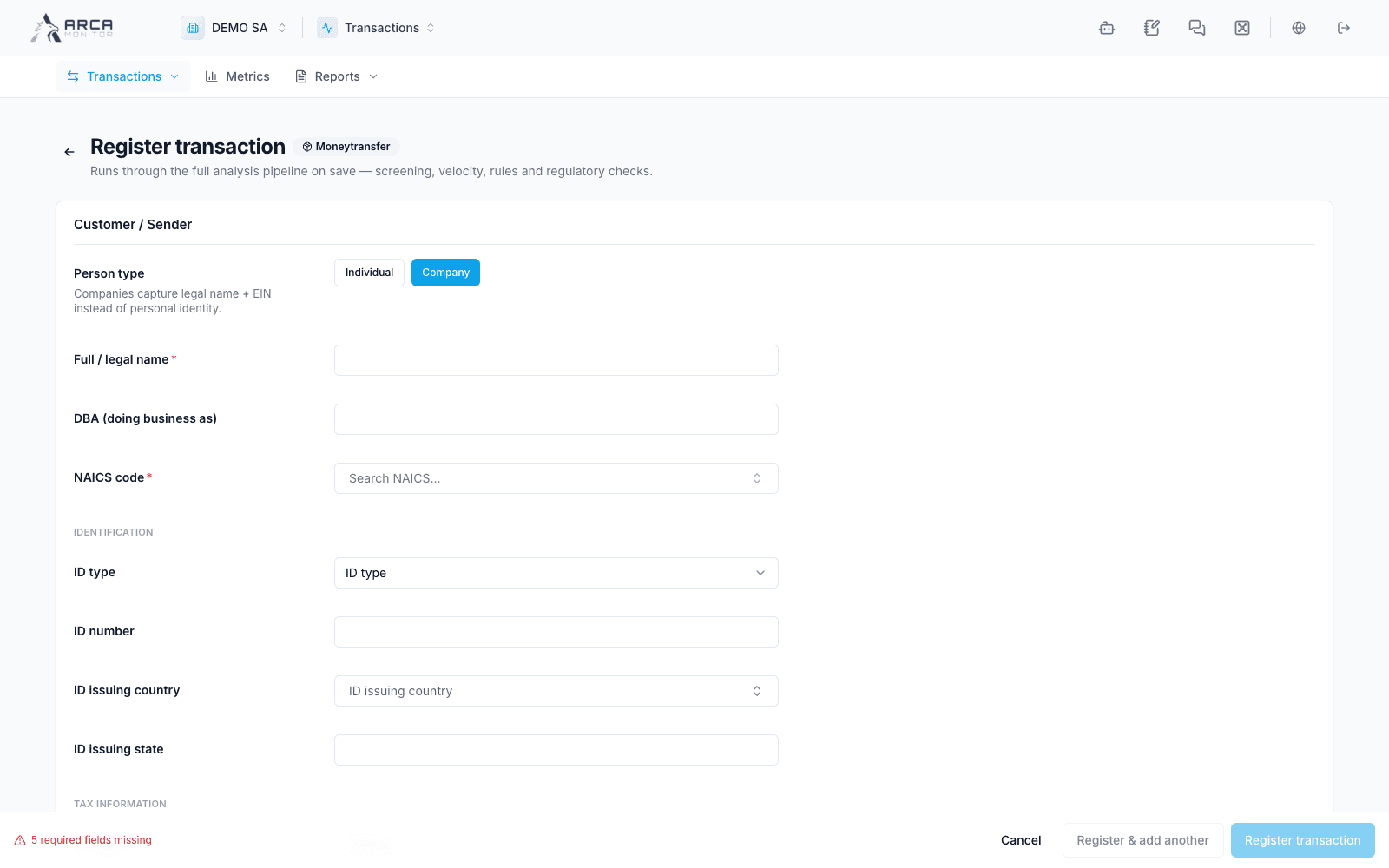
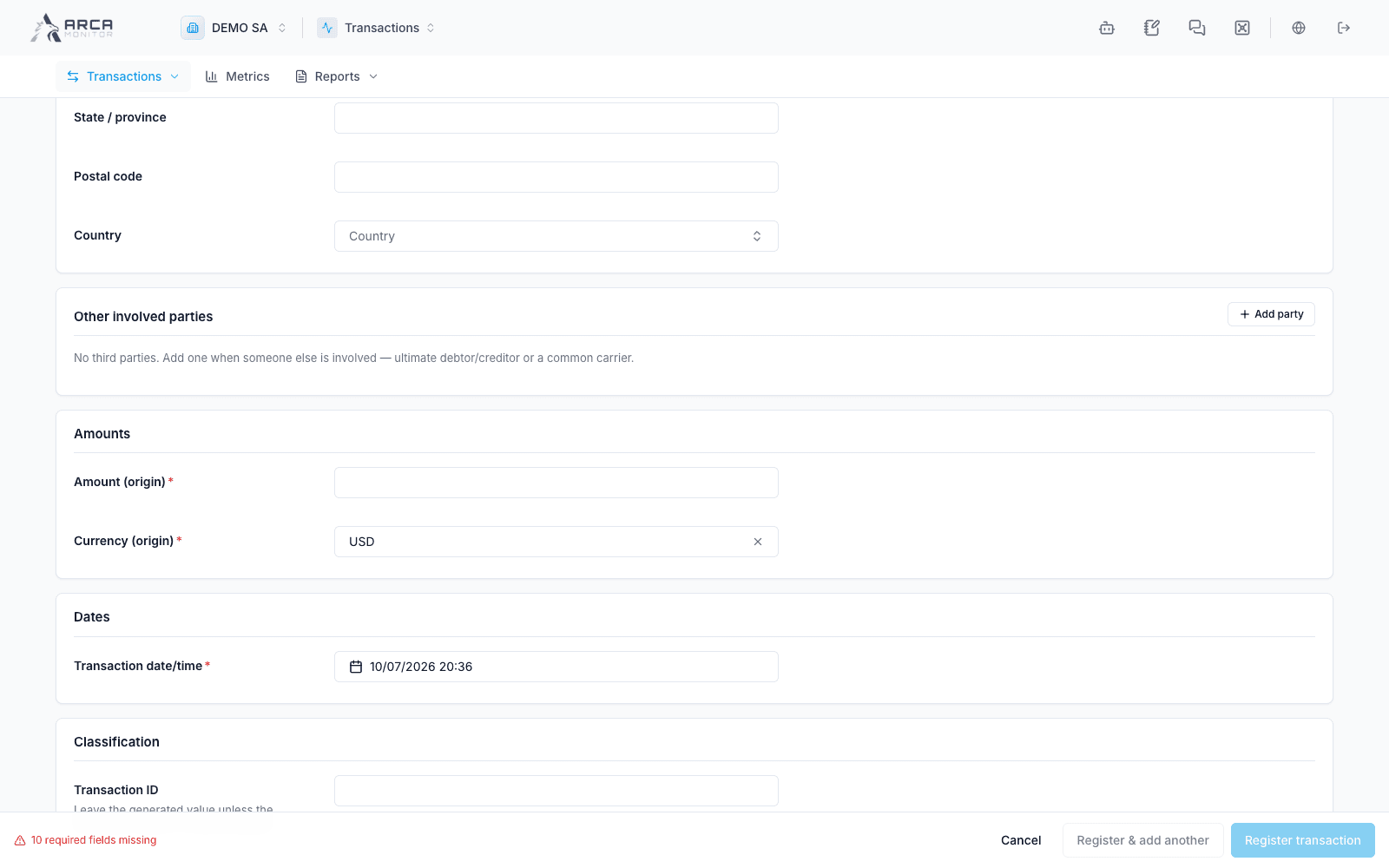
Complete the required fields marked with an asterisk. Select the correct person type for each participant and enter the applicable identity, address, contact, or account information. Expand optional fields when you have relevant supporting information.
Use the source currency and amount as recorded. Do not substitute a different product or invented identity information just to make the form pass.
Review validation and warnings
The form checks required-field completeness and shows a preflight assessment. Use the missing-fields indicator to move to the first incomplete field. Read validation errors, warnings, and any filing-related blockers before submitting.
“Required fields complete” describes the form’s local completeness. The server still validates the submitted operation. A warning or filing blocker may describe a later workflow requirement; read its message rather than treating every notice as the same kind of error.
Register and verify the result
Choose Register transaction to save and open the new record. Choose Register & add another only when you intend to enter a different operation next. That option preserves product and some working context, such as date and agent information, while clearing the operation-specific draft.
After a successful response, verify the new reference, parties, amount, and currency. The record enters the analysis pipeline; registration is not a payment authorization or a guarantee that all controls have finished.
Handle an unsuccessful submission
Correct the specific server error and keep the source data available. If the request’s result is uncertain, search for the reference before submitting the same operation again. If the platform reports that manual registration is disabled, use your organization’s available ingestion process rather than trying another product to work around it.
Continue with Review a transaction to examine the saved operation and its evidence.
Screens and controls
Choose a configured product
Individual participant fields and required-data indicators
Company participant fields
Amounts, classification and operation details
Check-cashing product and its specific fields