Channels, members, and support
Choose a channel, manage its audience, and set your notification preferences.
Open and organize channels
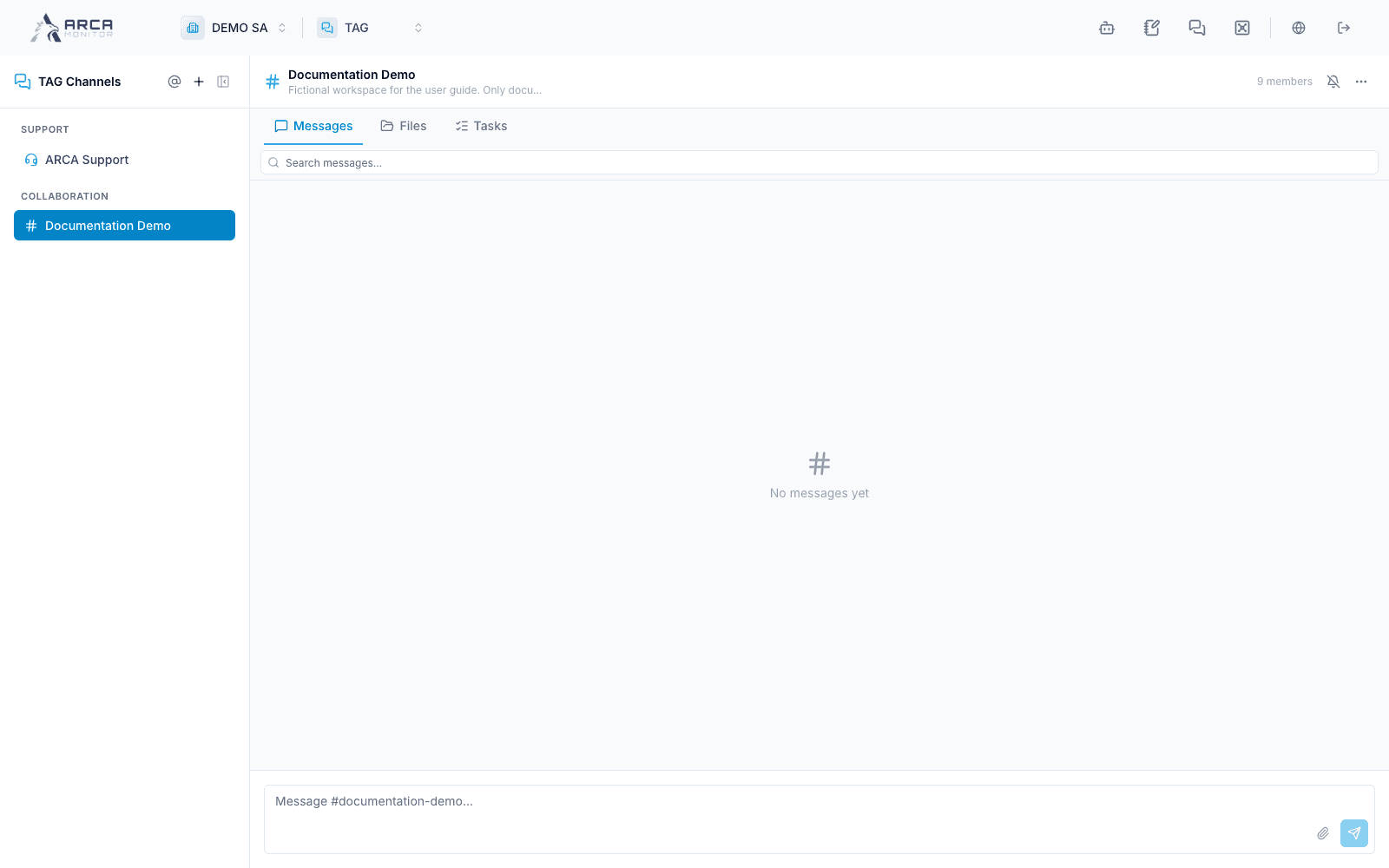
Select a channel in the sidebar. Pin frequently used channels and use the sidebar collapse control when you need more room. On small screens, use Back to return from the conversation to the channel list.
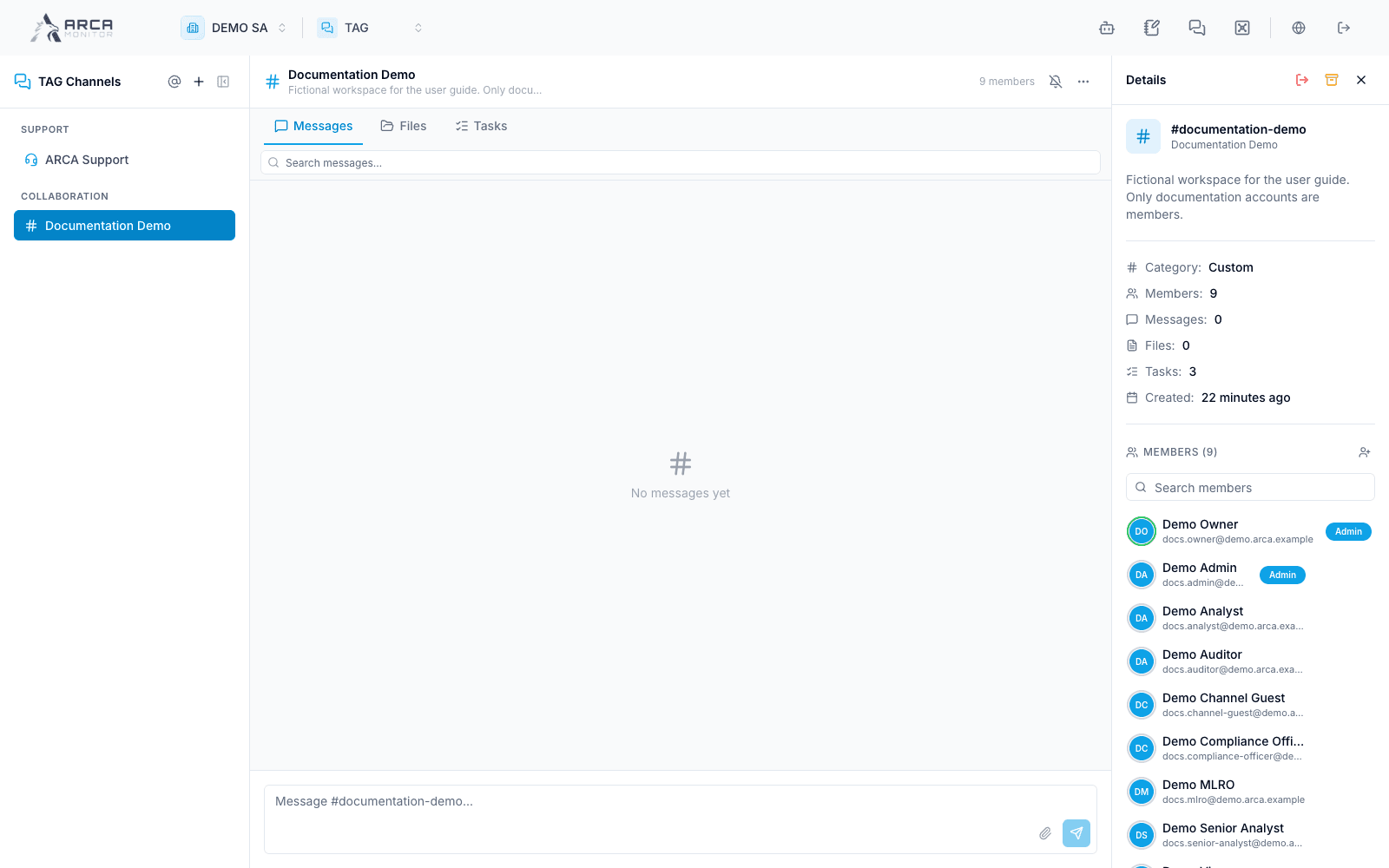
The channel header shows its name and context. Open the member count or details action to inspect members before sharing. The notification menu offers all messages, mentions only, or muted. These preferences change your notifications; they do not remove membership or prevent others from posting.
Create or maintain a channel
If authorized, use the sidebar’s create-channel action. Enter a name, check the generated slug, add a useful description, choose its color, and create. The current form does not offer a public/private switch. Confirm the resulting channel and membership before using it.
Use channel actions to edit details or add members when permitted. The member dialog distinguishes existing workspace users from email invitations for channel guests. Review the audience and addresses carefully before confirming; an invitation is an actual communication and access action.
Archive only the intended channel after reading its confirmation. System-managed channels have different restrictions from user-created collaboration channels; use the controls actually offered.
Notification feeds and support
System read-only feeds show events with source context and do not expose the collaboration Files/Tasks bar or a normal message composer. Open the source record to act on the event.
ARCA Support is a separate support conversation. Open it when you intend to contact support, describe the issue and affected workflow, and review attachments before sending. A support message is not a case decision, and opening the empty support screen does not send a request.