
API keys, OAuth and webhooks
Manage integration credentials and event notifications.
Choose the integration mechanism
Workspace settings separate API Keys, OAuth clients and Webhooks. API credentials allow an integrating system to request permitted operations. Webhooks send subscribed event notifications to your configured endpoint. Use the credential type your integration supports.
Create an API key
- Open API Keys → Create API Key.
- Enter a name that identifies the consuming system and purpose.
- Select the required scopes. Groups offer Select all or Deselect group; review the selected count and each write or filing scope carefully.
- Review Set Expiration and the displayed duration.
- Choose Create Key, then follow the credential display and storage instructions shown by the platform.
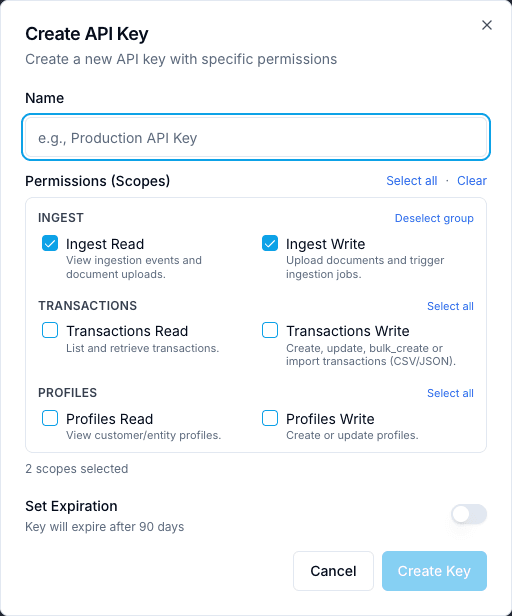
The key list provides status and Enable/Disable and Delete actions. Disabling or deleting a key can interrupt its consuming integration. Coordinate the replacement and verify the integration's result. A key prefix identifies a credential; it is not the complete key.
Create an OAuth client
- Open OAuth clients → Create OAuth client.
- Enter a name and description for one integrating system.
- Select the required scopes; the client does not need every scope by default.
- Review Access token lifetime, expressed in minutes.
- Create the client and transfer the displayed credentials using your organization's approved secret-management process.
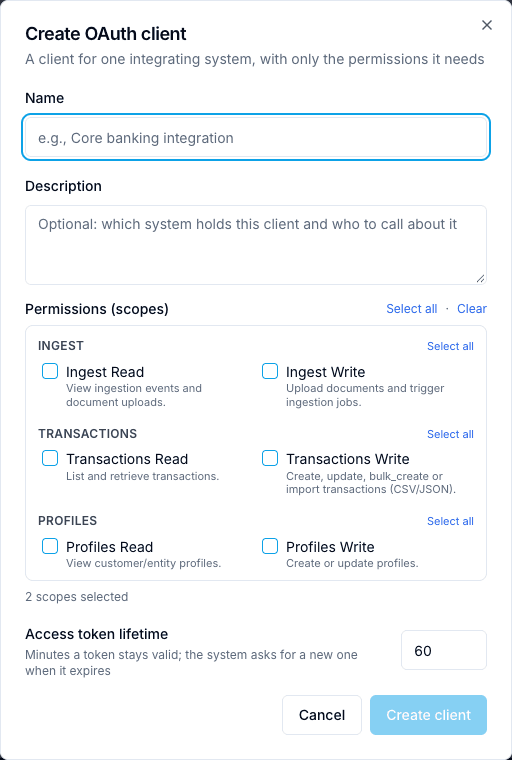
The client list offers Rotate secret and Revoke. Coordinate rotation with the consuming system and read the confirmation. Revocation removes the client's ability to obtain access as described by the platform; do not use it as a way to refresh a page. The integration guide on the page includes the token endpoint, public-key endpoint, server metadata and workspace code.
Add a webhook
- Open Webhooks → Add Webhook.
- Enter a descriptive name and the endpoint URL supplied by your integration team.
- Select only the events the receiver handles. The form groups ingestion, transactions, alerts, cases, screening and subscription/payment events.
- Create the webhook and configure the receiver with the signing information shown by the platform.
- When ready, use Test and inspect the delivery result. A saved configuration alone does not establish successful delivery.
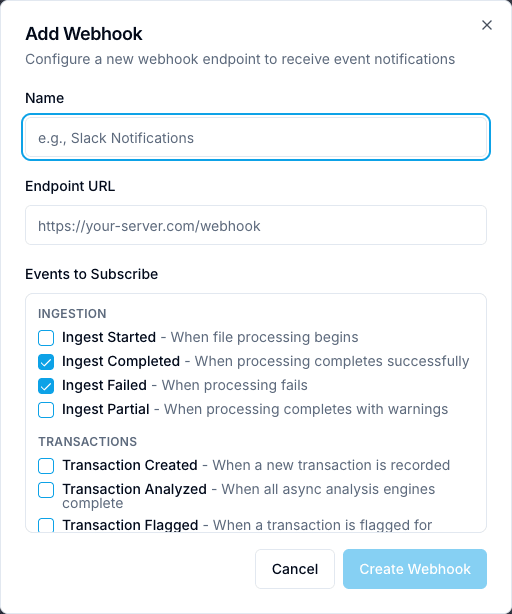
The action menu offers secret rotation, enable/disable and deletion. A test sends a request to the configured endpoint; arrange the test with its owner. When changing the signing secret, update the receiver as part of the same coordinated change.
Verify the outcome
Confirm the workspace, credential or endpoint name, status, selected scopes/events and the consuming system's result. Keep operational secrets in your approved secret store. Screenshots in this guide intentionally show empty creation forms, so no existing credentials are needed to follow the procedure.