
Authentication
ARCA MONITOR / USER GUIDE
Sign in to ARCA Monitor
Access your account and complete multi-factor authentication when requested.
Before you begin
Use the ARCA Monitor address provided by your organization. You need an active account and access to your configured verification method, if applicable.
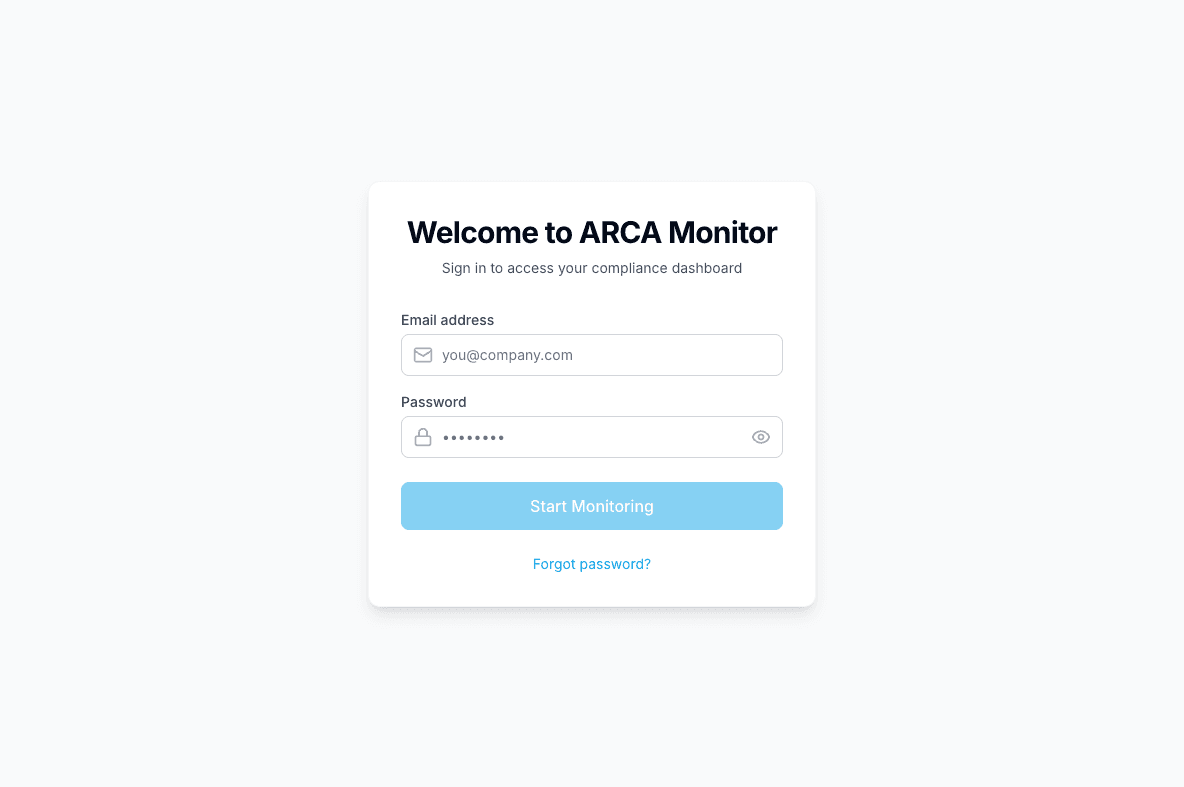
Sign in with your email
- Open the platform’s Login page.
- Enter your Email address and Password.
- Select Start Monitoring.
- Complete any verification challenge that appears.
- Once inside, confirm the active workspace in the header. Switch workspace if needed.
Complete multi-factor authentication
The challenge offers the methods available for your account. Depending on your configuration, these may include an authenticator code, an email code, a backup code, or a passkey.
| Method shown | What to do |
|---|---|
| Authenticator | Enter the current code from your authenticator app. |
| Email code | Check your email and enter the code. Use the resend option if available. |
| Backup code | Enter an unused backup code that you previously saved. |
| Passkey | Select the passkey action and complete the browser or device prompt. |
Use the methods shown for your account
A method is only usable when it is offered in your challenge. If you cannot use any available method, contact your organization’s support contact for help restoring access.
If access fails
- Incorrect credentials: check the email and password, then try again. Use password recovery if needed.
- Invalid verification code: confirm the selected method and use a current code. A passkey prompt must be completed in the browser or device.
- Your workspace is missing: ask the person who invited you to verify your membership. Signing in and belonging to a workspace are separate requirements.
End your session
Use Sign out in the platform header when you finish working, particularly on a shared computer.