
Members and roles
Invite colleagues and understand how workspace permissions are assigned.
Before you make changes
Confirm the active workspace. Managing members requires the appropriate team-management access. If an action is unavailable or rejected, ask the workspace administrator to review your permissions.
Invite a colleague
- Open the workspace settings and select Members.
- On the members tab, choose the invitation action.
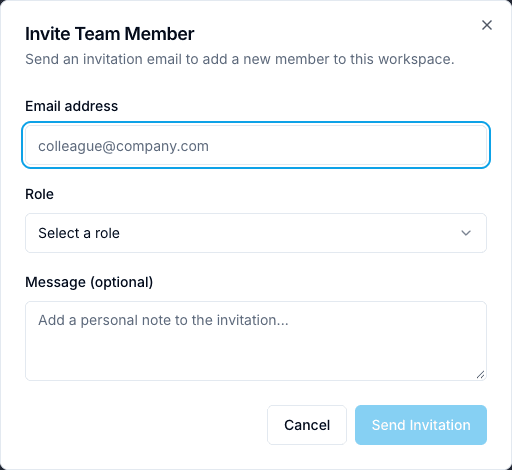
- Enter the colleague’s email and select a role.
- Add an optional message and send the invitation.
- Check the member list for the invitation status.
The recipient follows Accept a workspace invitation. Sending an invitation does not mean that the recipient has accepted it.
Review the member list
Use search and the status or role filters to find a person. Review their email, assigned role, and membership status before making changes. For a pending invitation, the available actions include resending it.
Understand roles
The platform includes system roles such as Admin, MLRO, Compliance Officer, Senior Analyst, Analyst, Auditor, and Viewer. Workspaces can also have custom roles.
Check the permissions behind the role
A role name alone is not a complete permission specification. Review the role’s actual permissions and any restrictions on the action you need to perform.
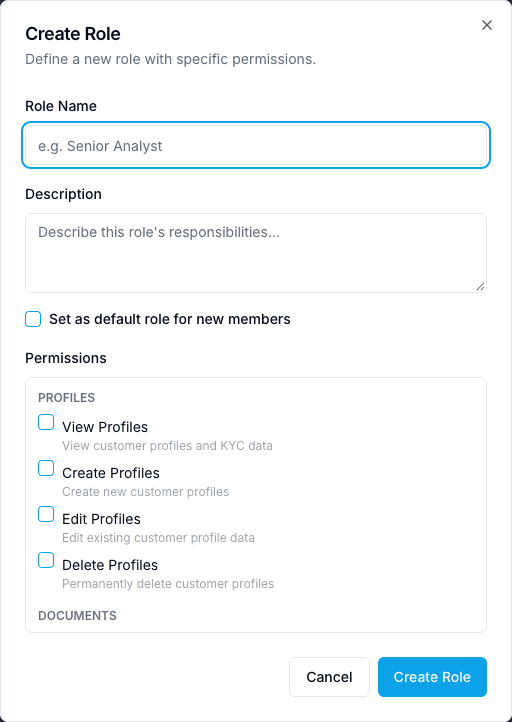
Open the Roles tab to review available roles. Where your access allows it, role management offers a name, description, and a permissions checklist grouped by category.
Change a member’s role
Find the correct member, use the role-change action if available, select the intended role, and confirm. Wait for a success message and check the updated row. Follow your organization’s approval process for access changes.
Confirm the outcome
After an invitation is accepted, check membership status and the assigned role. Ask the member to open the intended workspace and verify access to their required tools.
For sign-in issues, see Sign in to ARCA Monitor.
DEMO SA visual reference
The docs. search limits this list to the guide's fictional accounts. The summary counters describe the whole team.
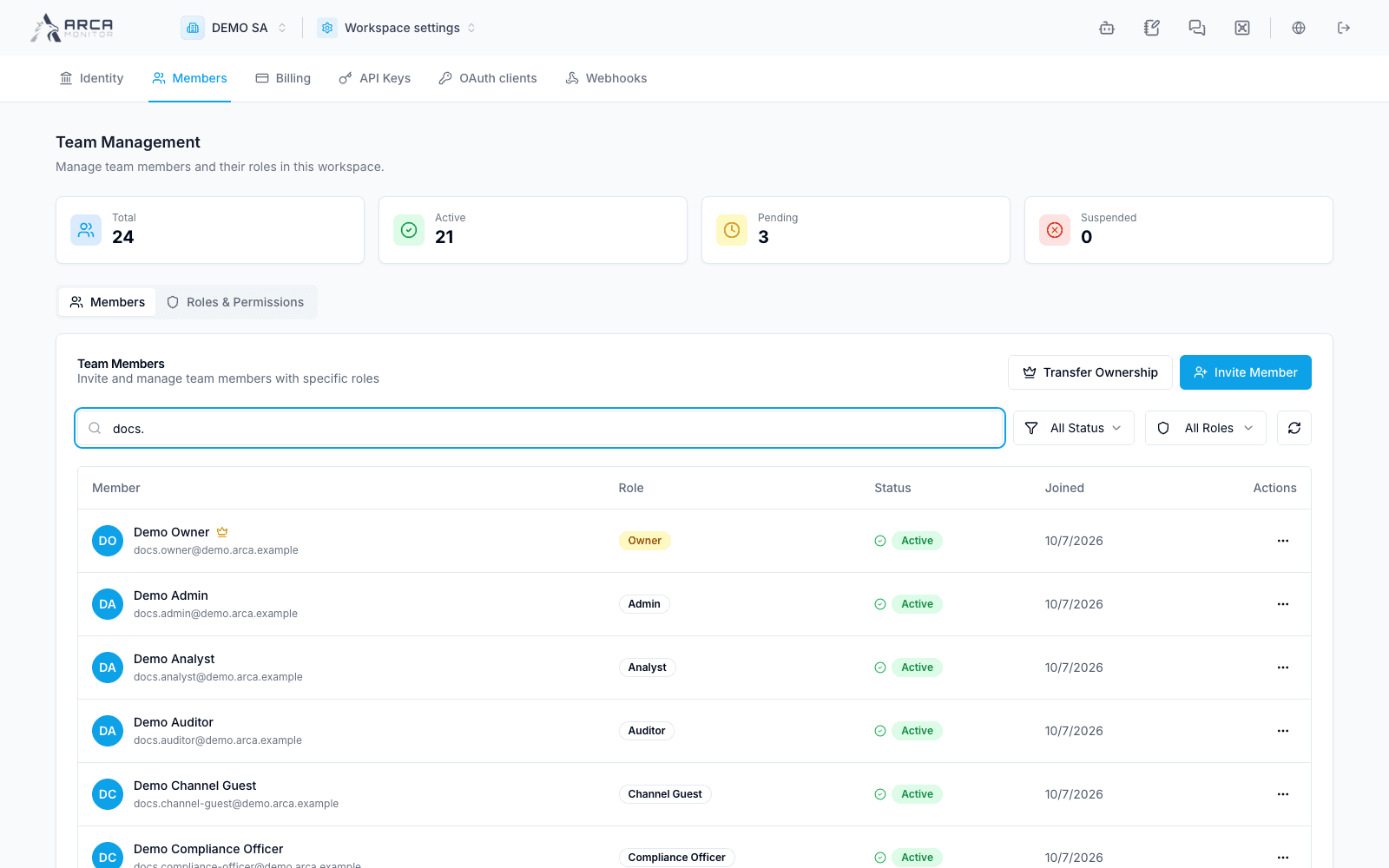
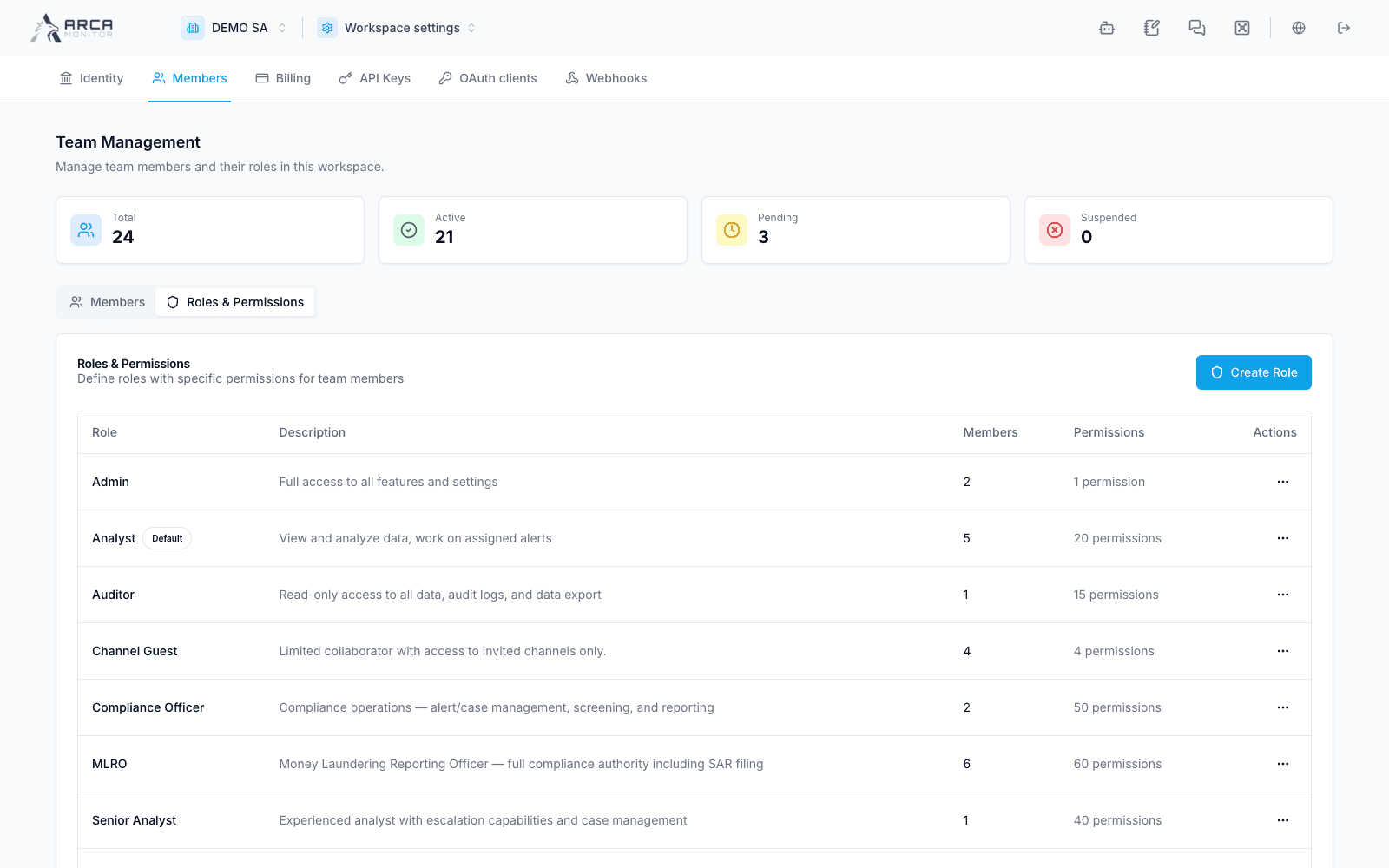
Admin uses the wildcard permission *: one permission in the table does not mean one capability. Owner is a membership property, separate from the role name. See the role guide.
Ownership transfer is available to Owner and requires a target member and password confirmation. Complete the authorized transfer before attempting to remove an owner.