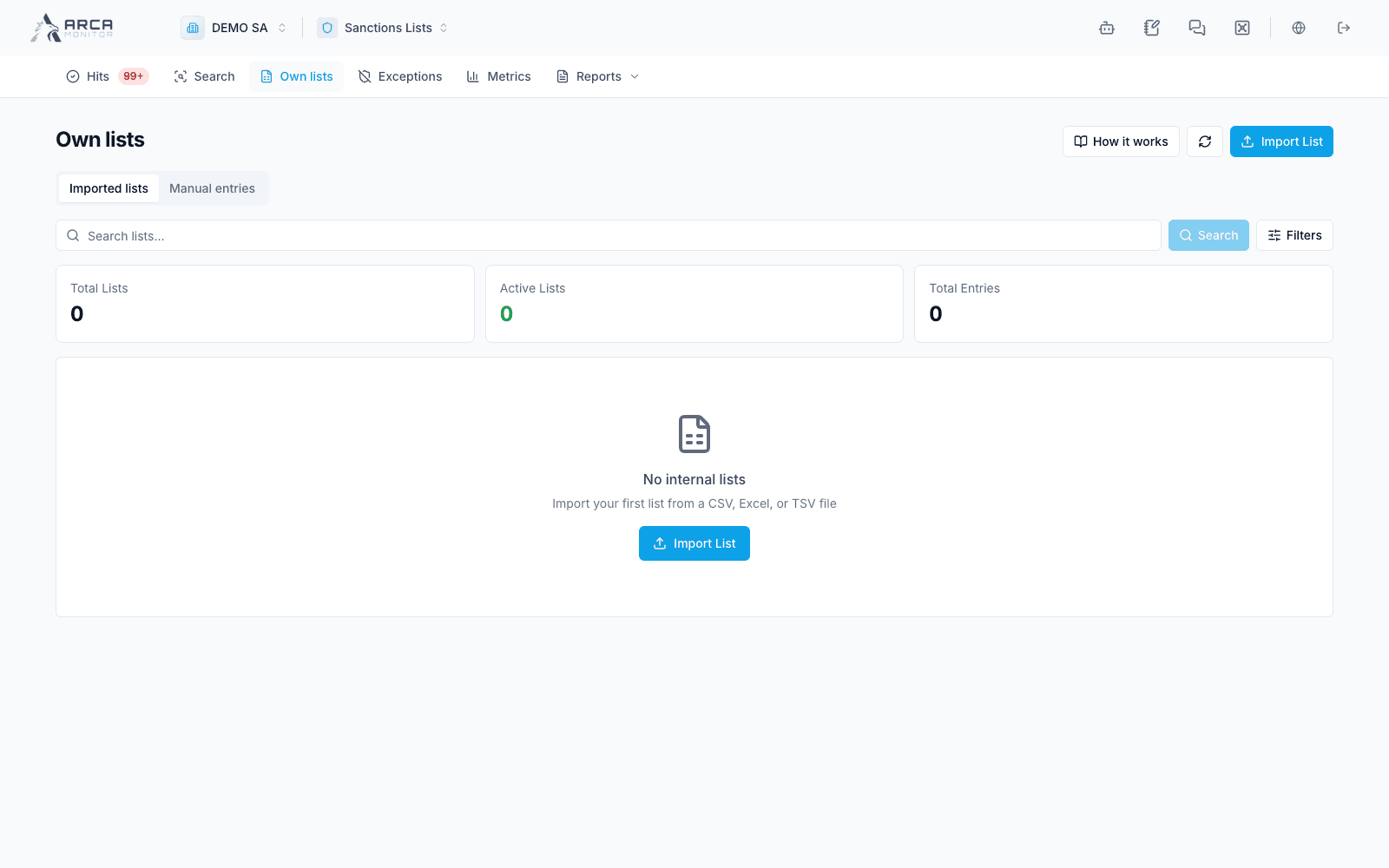
Import own lists
Load a reusable workspace source list and check its import, activation, and screening behavior.
Open Own lists → Imported lists. These are sources maintained by your workspace. They are different from a batch of subjects to check and from centrally released external lists.
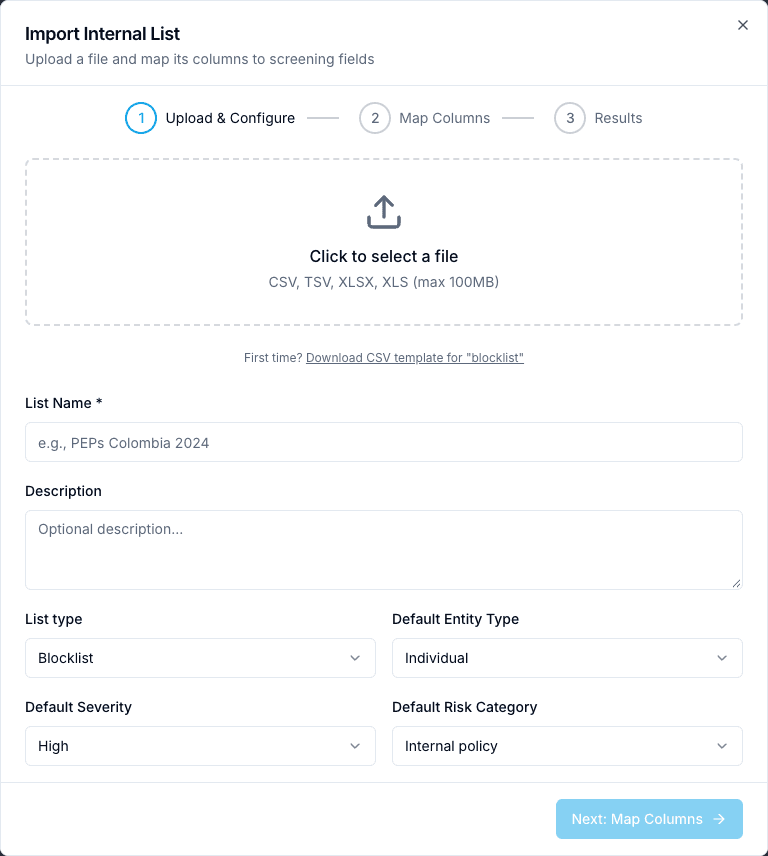
Import a new list
- Choose Import List and select a supported CSV, TSV, XLSX, or XLS file within the displayed size limit.
- Enter a meaningful list name, choose its type, and review defaults such as entity type and severity. Confirm that this should be a new list; use Update lists for an existing one.
- Continue to column mapping. Map the name field and every useful identifier, alias, date, country, reason, and source reference. Review detected mappings instead of assuming a column name was interpreted correctly.
- If a saved mapping template is available, compare it with this file. A template cannot supply columns absent from the upload.
- Submit the import and follow progress. Inspect the final imported, skipped, and rejected counts and any row errors.
The import runs asynchronously. Pending or Importing is not completion; Partial requires review of rejected rows. Before retrying after a connection error, reopen the existing list and inspect its status to avoid creating another copy.
An own PEP register is a distinct list type
Select the own PEP-register type for workspace-maintained PEP/RCA data. Its mapping adds optional position, position country and dates, relationship type, and related-person fields. Provide traceable source information and verify those mappings.
These entries appear as PEP results labelled with their workspace register, rather than ordinary internal-blocklist hits. The register is workspace-specific. Do not assume that public-PEP category or former-office filters exclude register entries in the same way.
Confirm activation and use
Check both import completion and the Screening switch. An imported list is not effective merely because its filename appears in the table. Active ordinary internal entries are considered according to their validity dates and the applicable screening behavior.
Changes affect later screening; an import does not itself re-run every existing profile or transaction. Plan follow-up through the relevant monitoring or re-screening workflow.
Use the list detail to inspect entries and versions. If management buttons are disabled, read the permission explanation and ask the responsible workspace member to handle the change.
Screens and controls
Workspace lists and their controls