Reviews and independent approval
Review a decision packet and distinguish quality review from disposition.
Find the review
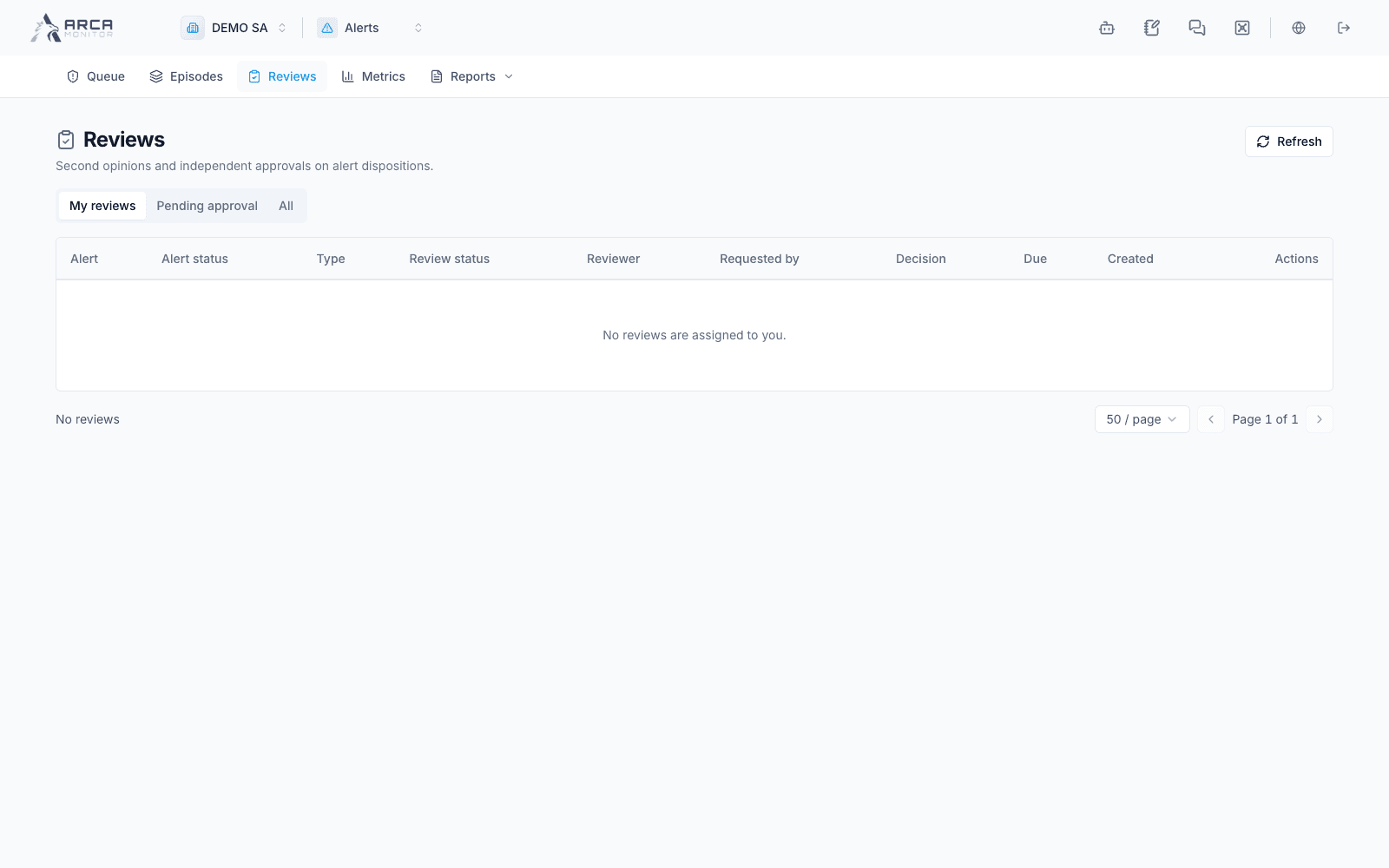
Open Reviews and choose My reviews, Pending approval when available, or All. Apply status/type filters and inspect the reviewer, decision, and due date. An escalated queue row is not automatically a review waiting for your signature.
Open the alert to work the review with its evidence. Complete the required investigation before recording a proposed disposition and rationale. The result indicates whether the decision was applied or awaits approval.
Give the second signature
- Open the proposal’s Approve or Reject dialog with an authorized account different from the proposer.
- Read the saved decision packet: proposed result, reason, rationale, playbook version/answers, and evidence references. Older proposals can explicitly lack a full packet; do not invent missing support.
- Compare the proposal with the current alert. A changed context can invalidate an earlier proposal and require a new review.
- Approve only the reviewed outcome, or reject with the required explanation. Approval applies the permitted disposition; rejection returns the proposal without changing the alert status.
- Refresh and confirm both review outcome and alert status in the audit trail. A failed packet load must be retried before approval.
Understand quality review
A quality review records concurrence or discrepancy with an earlier decision. It does not make a fresh disposition. A discrepancy can place a closed alert in QA rework; the analyst must revisit the finding through the appropriate workflow. The quality reviewer must be different from the person who decided.