
Authentication
ARCA MONITOR / USER GUIDE
Recover your password
Request a reset link and set a new password for your account.
Request a reset link
- On the sign-in page, select Forgot password?.
- Enter the email address associated with your account.
- Submit the request and check your inbox and spam folder.
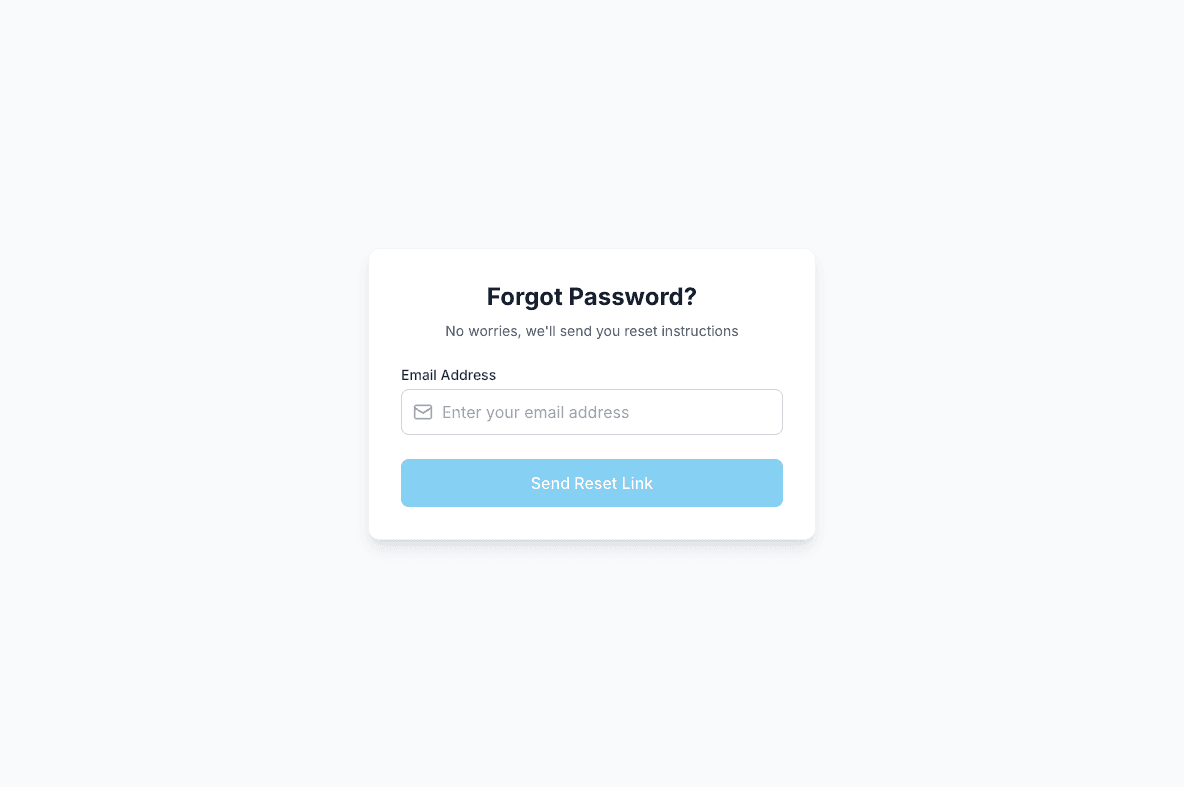
The confirmation does not verify the account exists
The request screen deliberately shows a generic confirmation. It does not establish that an account exists or that an email was delivered.
Set your new password
Open the reset link from the email, enter your new password, and confirm it. Follow the requirements displayed in the form; the platform’s password policy determines which passwords are accepted.
When the reset succeeds, return to sign-in and use the new password. Complete multi-factor verification if requested.
If recovery does not work
- No email: check the address you entered and your spam folder. If the email does not arrive, contact your support contact.
- Invalid or expired link: request a new link from the recovery page.
- Password validation error: correct the requirements shown. A rejected password does not, by itself, mean the reset link is invalid.
- No access to the email account: contact your organization’s support contact for account recovery assistance.
Continue with Sign in to ARCA Monitor.