Work the alert queue
Find the right work and control assignment, holds, and bulk actions.
Find work
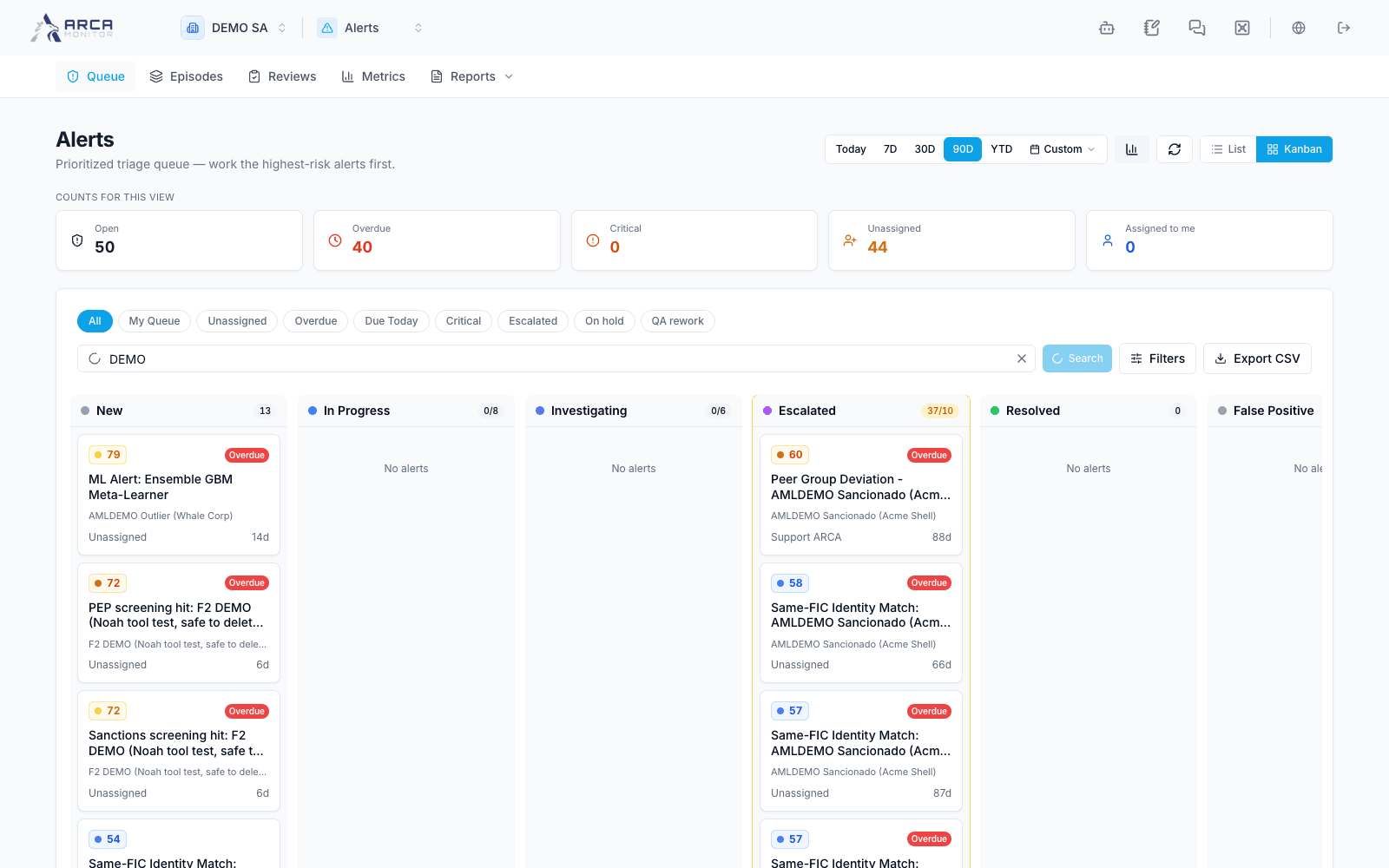
- Open Queue. The initial created-date window is 90D; choose Today, 7D, 30D, 90D, YTD, or Custom when looking for a specific period.
- Choose My Queue, Unassigned, Overdue, Due Today, Critical, Escalated, On hold, or QA rework. These are views of the queue, not separate review resources.
- Enter search text and use Filters for severity, status, type, and minimum priority. Apply the staged criteria with Search. A deliberately selected status can override the view’s default status set.
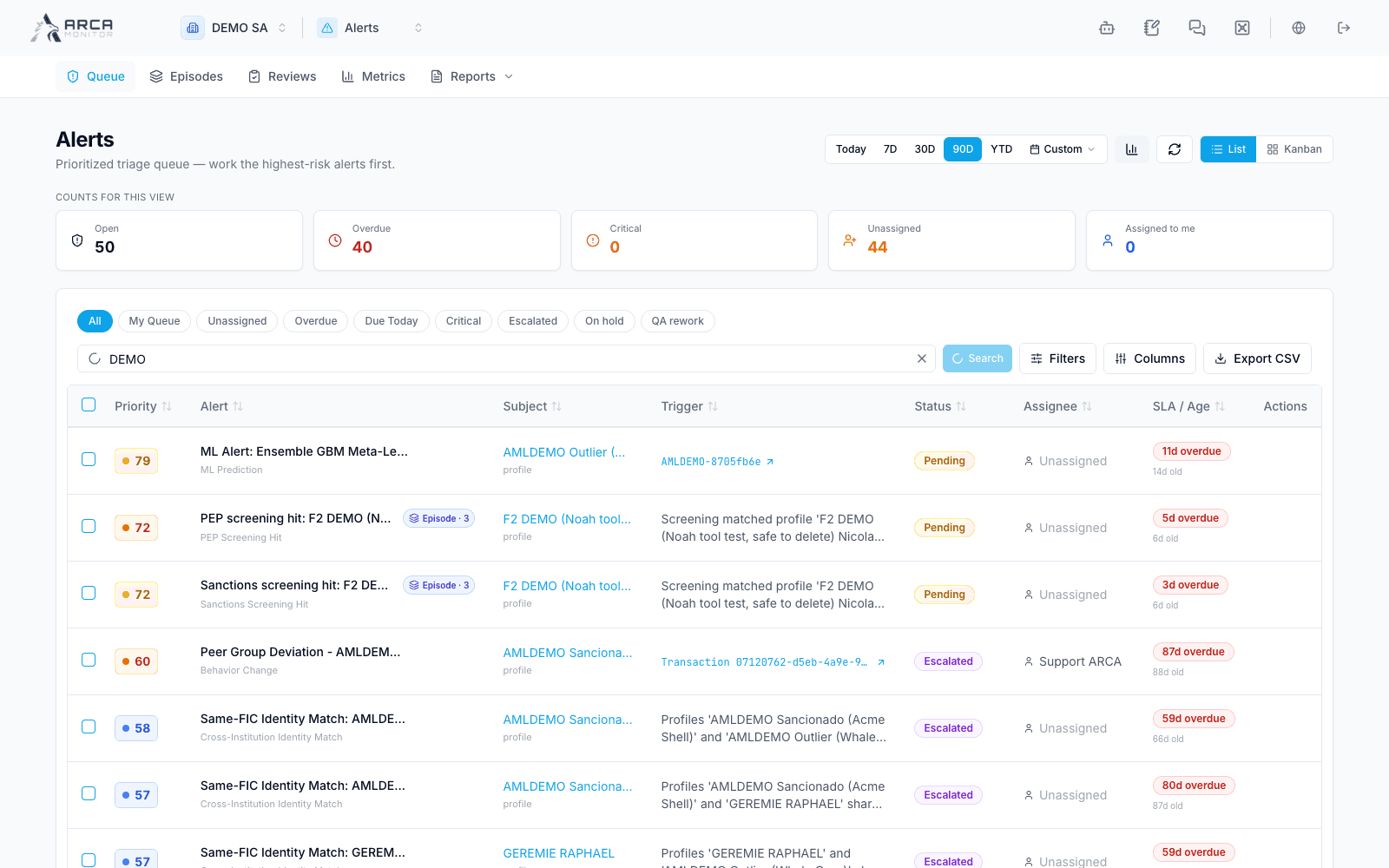
- Inspect active chips, date window, and sorting before interpreting an empty result. Clearing panel filters does not clear the header date window. Use Columns, pagination, and List / Kanban to organize the view.
Take responsibility and follow up
Open a row to review it before deciding. Use Assign to me, Assign to, or Release to queue as permitted. Check the resulting assignee after refresh; taking over an assigned item can require additional authority.
Put on hold asks who you are waiting on, a follow-up date, and an optional note. Explain what was requested and from whom. The dialog states whether your workspace pauses the SLA clock. The alert stays open; use Resume when work can continue and verify its current SLA.
Apply actions to a selection
Tick the intended rows, inspect the count, then choose the available assignment, escalation, or disposition action. Supply its reason. Results are returned per alert: partial failure is possible, and failed items remain selected for correction. Resolve the reported cause before retrying; do not assume every selected row changed.
Export CSV follows the queue’s export controls and permissions. Check scope and filters before sharing the output. An exported list does not resolve the alerts.
Screens and controls
Board view of the filtered queue