
Workspaces and navigation
Choose the right organization and understand where your settings live.
A workspace is the organizational context for your work. Your account may have access to multiple workspaces, each with its own members, configuration, and available applications.

Select a workspace
- Open the workspace selector in the header.
- Search for or select the organization you need.
- Wait for the switch to finish.
- Check the workspace name before reviewing or changing records.
When switching organizations, the platform may keep you in the same application if it is available in the destination workspace. Otherwise, it can return you to that workspace’s dashboard.
Check the organization, not only the page title
Two workspaces can offer the same application. Confirm the active workspace before acting on a record or changing settings.
Personal area or workspace?
| Area | What belongs here |
|---|---|
| Personal account | Your profile, security settings, devices, and personal preferences. |
| Workspace settings | Organization identity, members, billing, API keys, and webhooks. |
| Workspace applications | The operational tools available to your organization. |
Find workspace settings
Use the workspace’s settings access in the selector. The workspace settings navigation includes:
- Identity: organization information and branding.
- Members: membership and roles.
- Billing: the workspace’s billing area.
- API Keys: integration credentials management.
- Webhooks: integration event delivery configuration.
Visibility and the ability to make changes depend on your access. Use the linked billing and integration guides for those procedures.
If something is missing
If a workspace is not listed, ask an administrator to verify your membership. If an application or action is unavailable, ask them to check the app’s availability and your permissions in that specific workspace.
Continue with Members and roles.
Available navigation in DEMO SA
The selector shows installed applications. An application appearing here does not grant every action within it. Open the application and review its navigation, filters, and the record state.
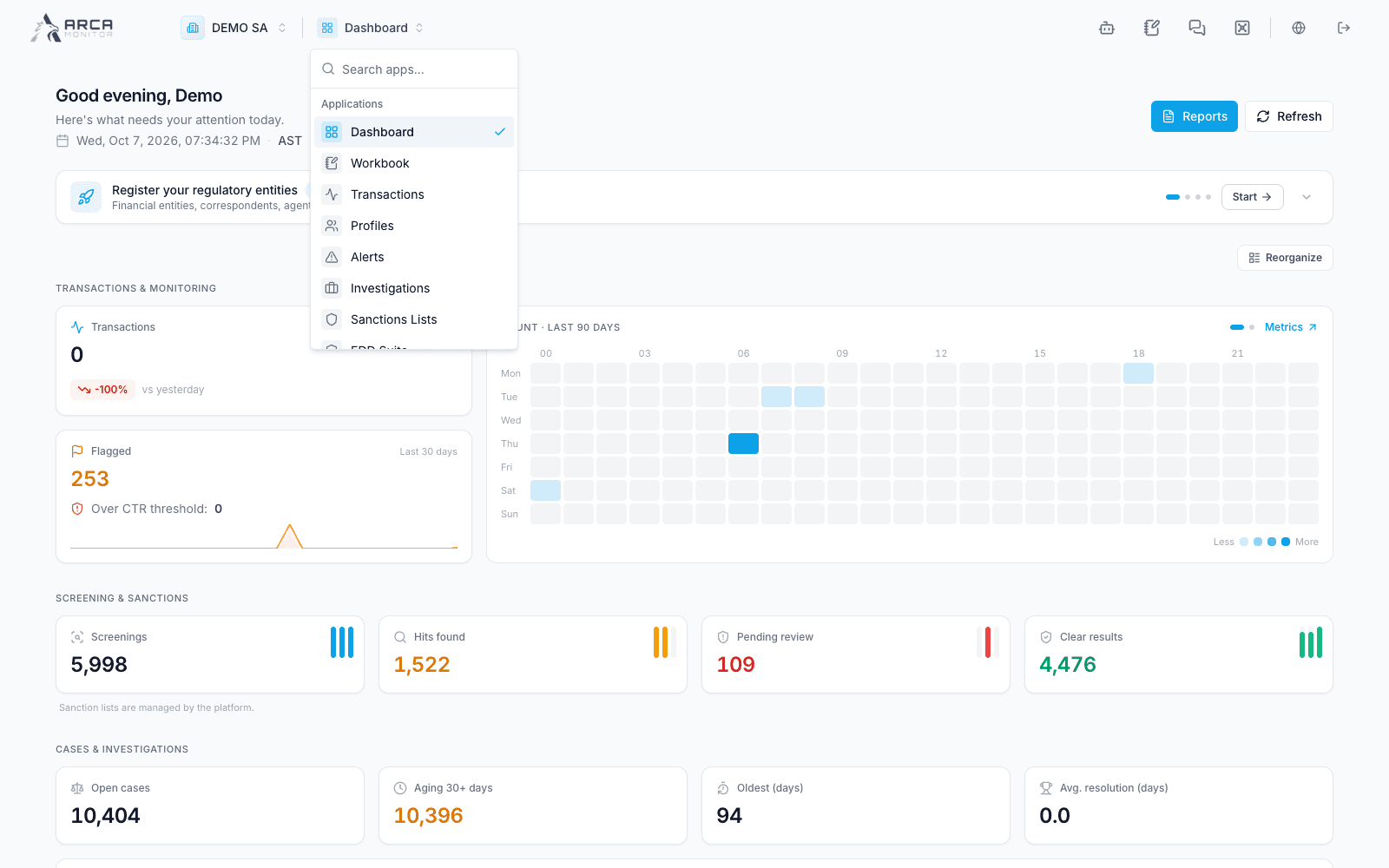
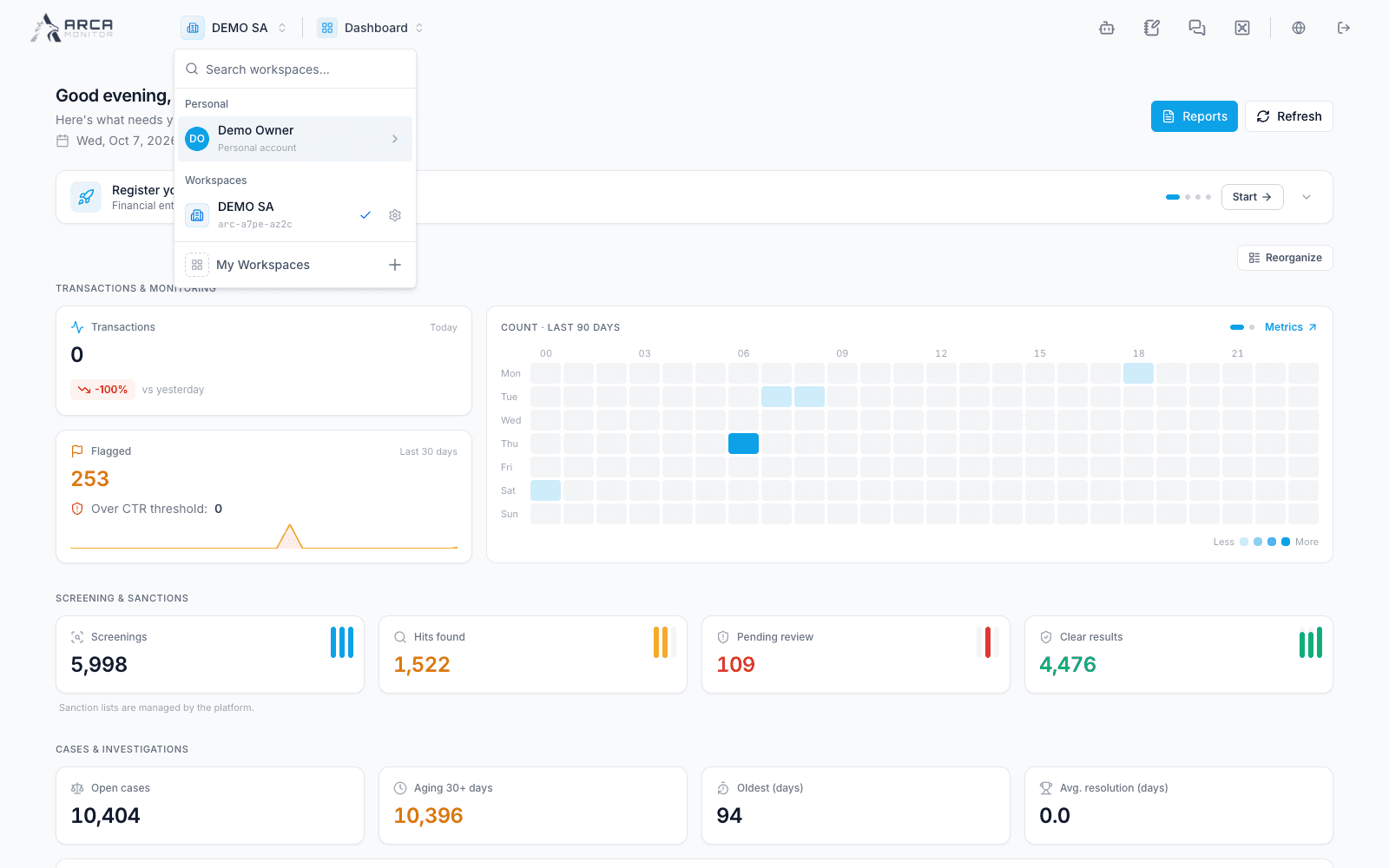
The header opens Noah, Workbook and TAG as working tools and provides access to Vault. Availability depends on the installed applications and account access. These captures use a workspace Owner account.
Continue with Identity, Billing, Integrations, and the role guide.