SLA Compliance and Workload
Find overdue work and balance analyst responsibility.
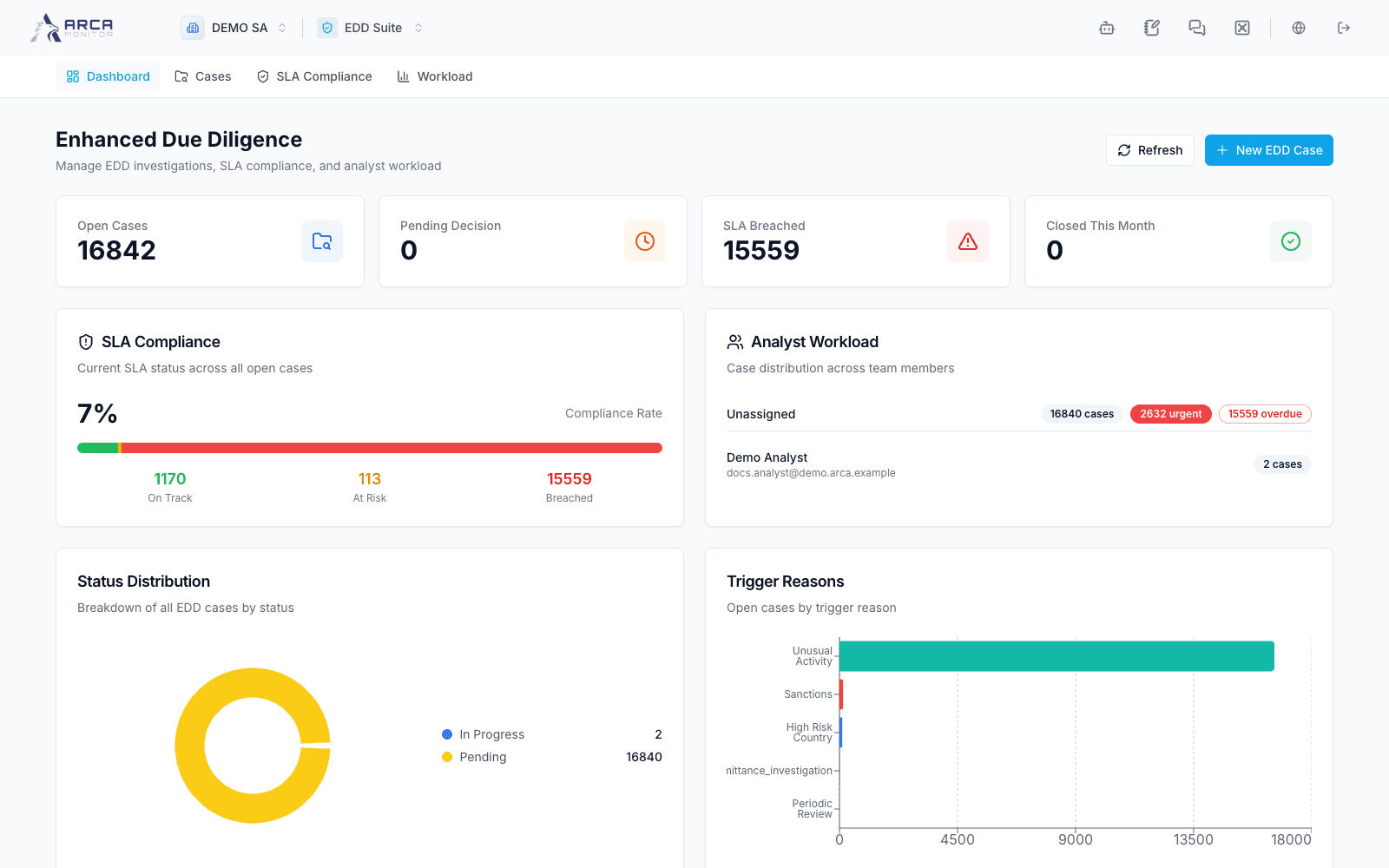
SLA Compliance
Choose SLA Compliance in the EDD menu. The page scrolls to the Dashboard’s SLA card. Read the compliance percentage together with total, on-track, at-risk, and breached counts. These reflect configured case deadlines; they are not a statement about a legal filing deadline.
Open the relevant case from the case list to inspect its actual due date, current status, and owner. If waiting on information, record the follow-up and use the appropriate workflow state; do not assume that a status automatically pauses its SLA.
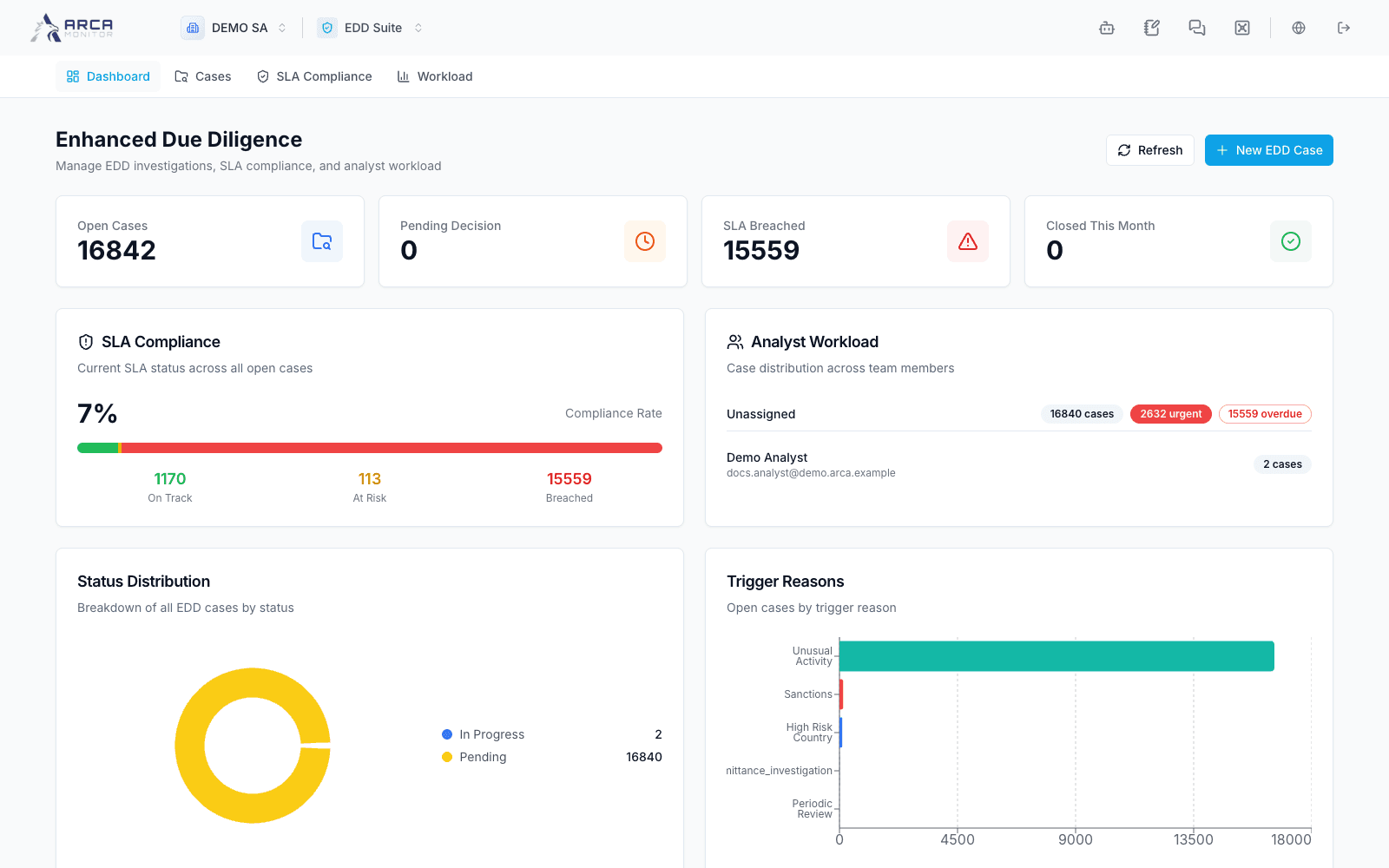
Workload
Choose Workload to move to the analyst workload card. Compare open work and the available workload indicators before assigning another case. Reassignment happens through the case’s assignment control, not by editing a dashboard total.
Keep interpretation consistent
Use Dashboard refresh when work has changed. If a request fails, retry and distinguish unavailable data from zero cases. If all values are zero in a new workspace, confirm the app installation and case list before treating that as a completed operational review.
For policy or template changes, use the authorized Governance configuration workflow. Changing a policy is different from resolving the cases that already appear overdue.