Read Noah Insights
Inspect usage and operational measures with their period and access scope.
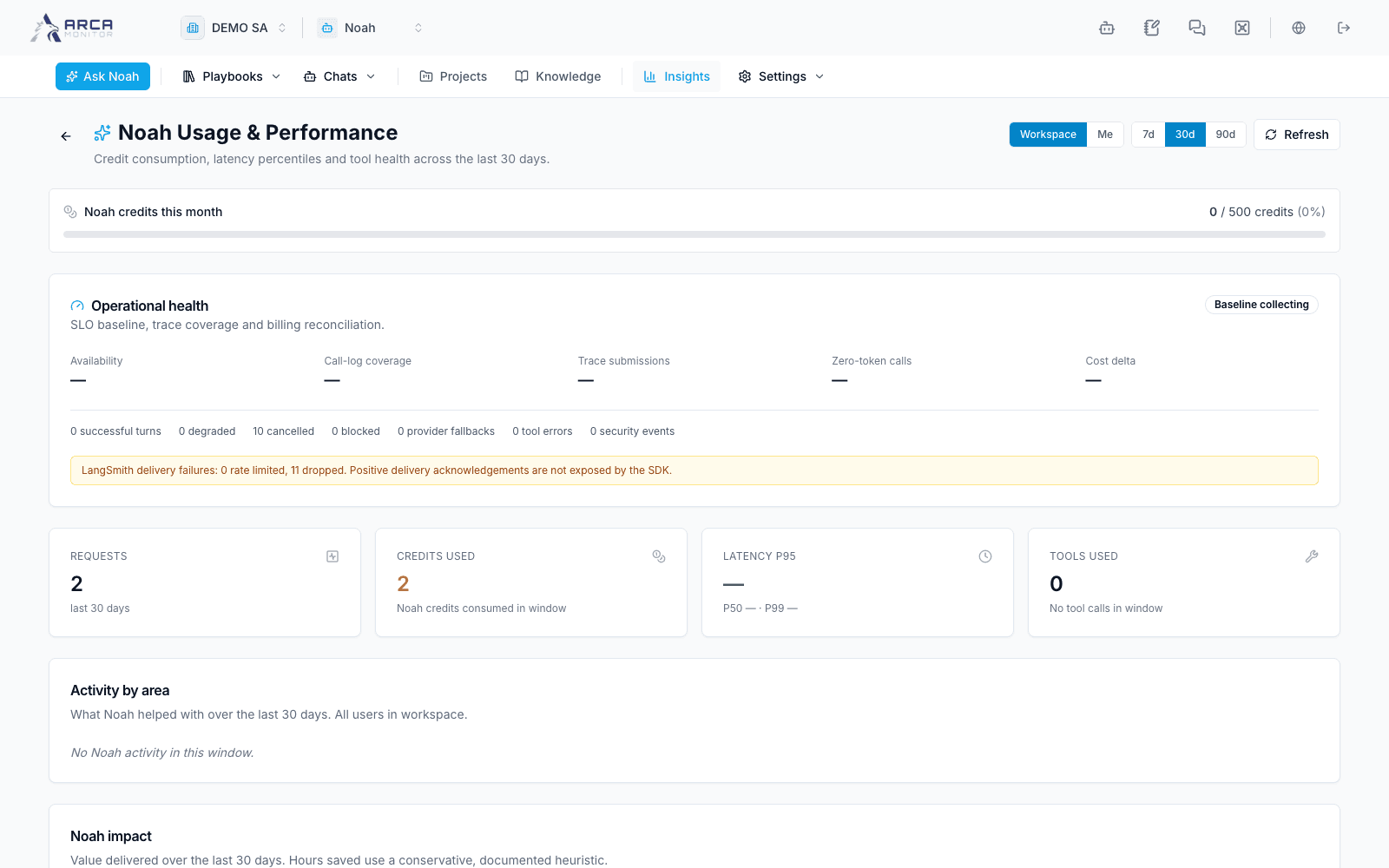
Open Insights. Select the available time window and Workspace or Me scope. Workspace-wide analytics require an elevated role; the page can fall back to your personal scope when that access is refused.
Read the panels in context
Review the available usage, cost, latency, activity-by-area, and impact panels. Check the selected period and each panel’s stated scope before comparing values. Where available, role breakdowns describe workspace usage; they are not a list of every action a particular analyst was authorized to perform.
Operational outcomes, conversation counts, and token/cost measures answer different questions. A completed response does not prove that every suggested task was performed. Impact estimates should be read with their displayed assumptions and the underlying recorded work, not treated as guaranteed savings.
Investigate an unexpected value
Refresh the page, confirm period and scope, and inspect source conversations or records where accessible. A failed panel is unavailable data. A zero in a new synthetic or unused workspace is a real empty state, not evidence of a functioning provider or successful end-to-end execution.
If Noah cannot answer or tools fail, use the displayed error and record context to coordinate with the workspace administrator. Provider and action-policy configuration belongs in the authorized Governance settings; changing the Insights view does not enable a provider or alter permissions.