Your first session
Go from an account invitation to the right workspace and application.
ARCA Monitor brings your organization’s compliance work into a workspace. Begin by confirming your access and choosing the organization you intend to work with.
Before you begin
Have your account email, password, and any configured verification method ready. If a colleague invited you, use the invitation sent to your email address. Your workspace membership determines the access available to you.
Activate your access
New members should accept their invitation. If your account is already active, go directly to sign in.
Complete verification
Enter your email and password. If a verification challenge appears, complete it using an available method. You have not finished signing in until verification succeeds.
Choose the workspace
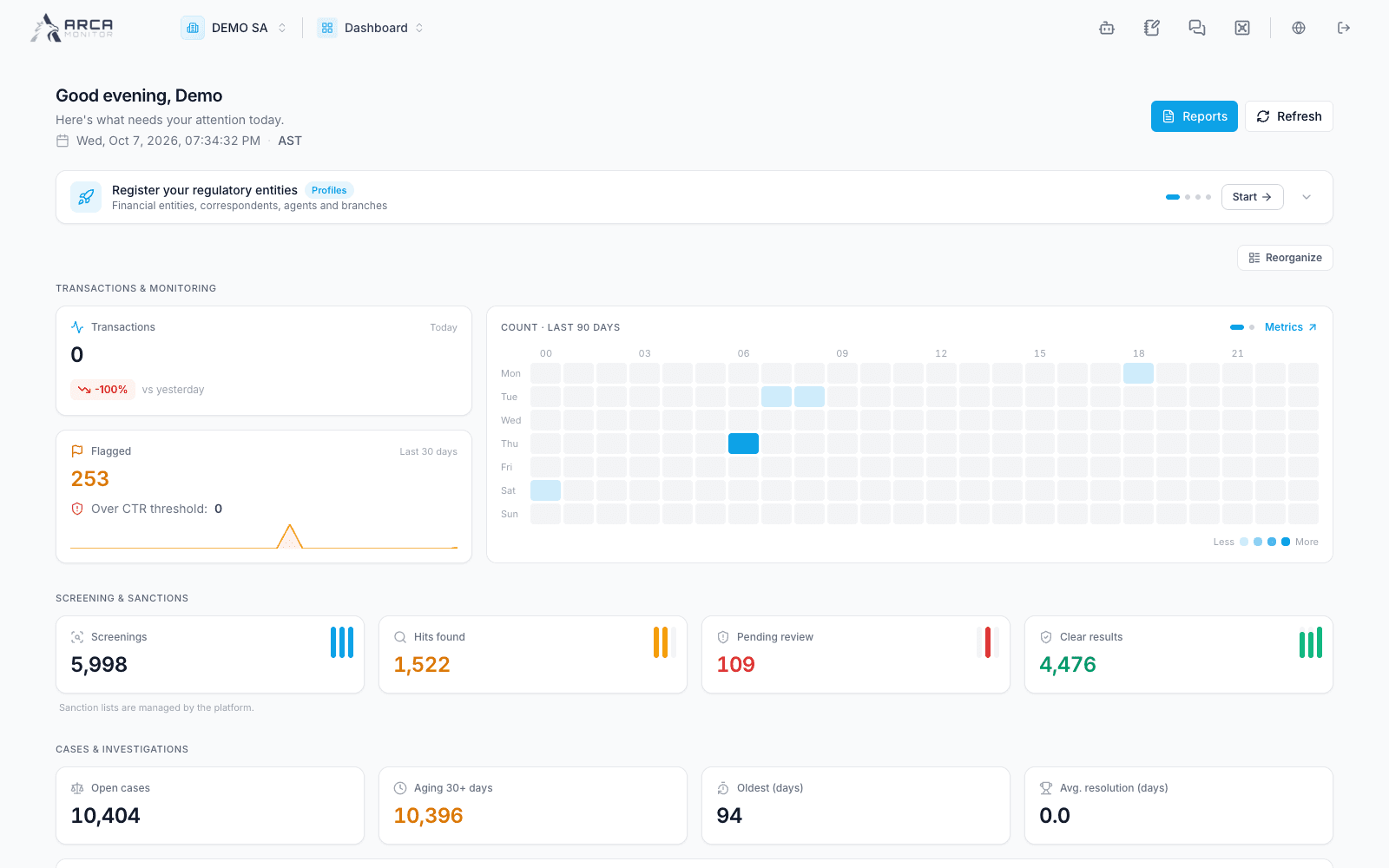
Use the selector in the header to choose your organization. Confirm the workspace name before opening records. Your personal area is separate from the workspace’s operational data.
Open your working application
Use the application selector to open an available application. Apps and permitted actions may differ between workspaces. If the app you need is missing, ask your workspace administrator to check its availability and your access.
Access flow
Confirm you are ready
You should see the intended workspace in the header and be able to open your application. A missing action does not necessarily mean something is broken: your role or the workspace configuration may limit it.
Where to go next
- Understand the workspace selector and settings.
- Update your personal profile.
- Invite team members and review roles, if you administer the workspace.
Screens and controls
Workspace landing page and application context