Risk and review decisions
Distinguish model risk, governed overrides, and the analyst’s review workflow.
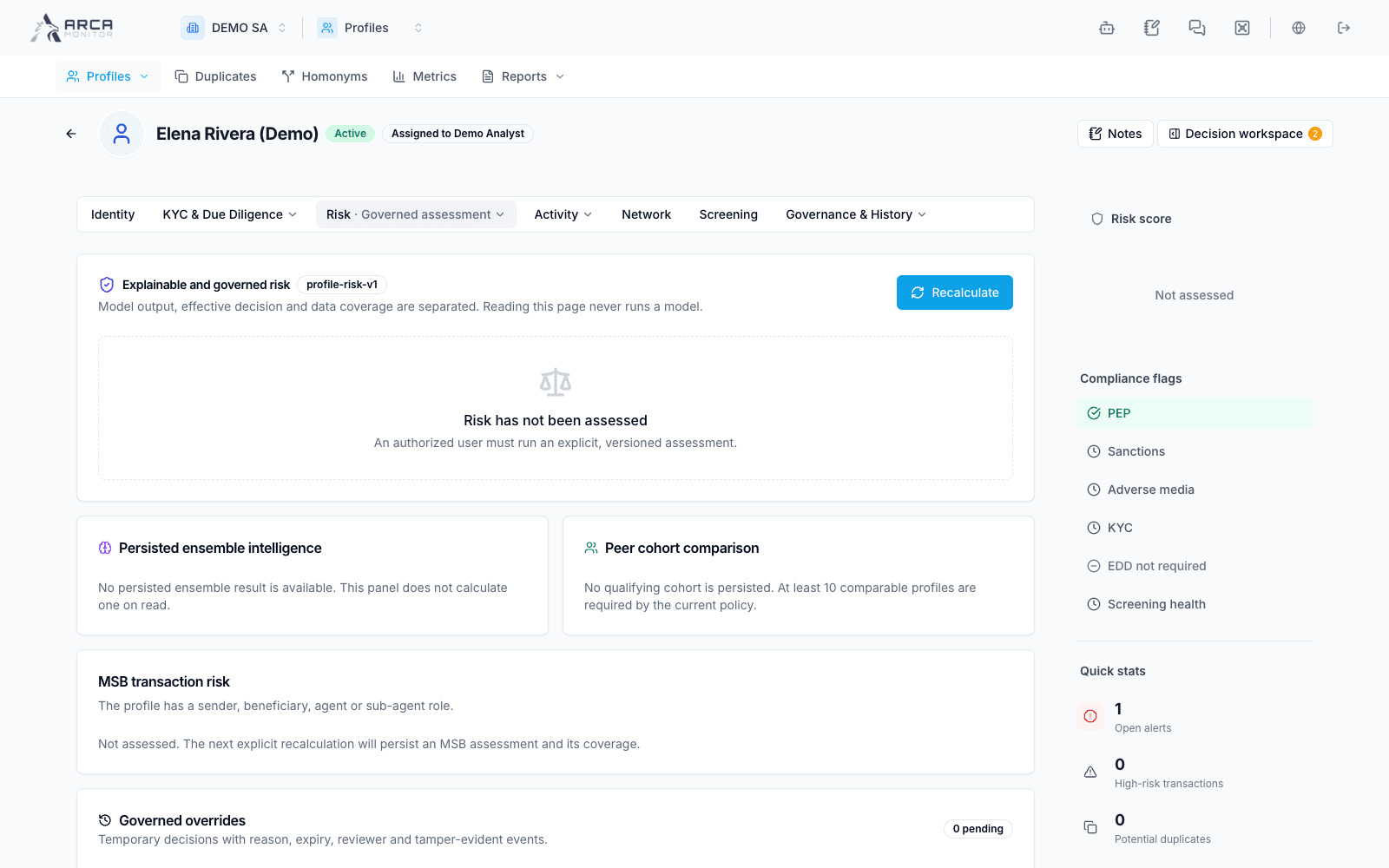
Open Risk → Governed assessment to understand the risk assessment and its evidence. The profile’s effective risk, model output, review lifecycle, KYC state, and screening disposition answer different questions.
Read the assessment
Compare the effective risk with the model output. Inspect input coverage, required gaps, assessment version, and history. A legacy assessment or an unassessed input needs its own interpretation; do not treat a missing score as low risk.
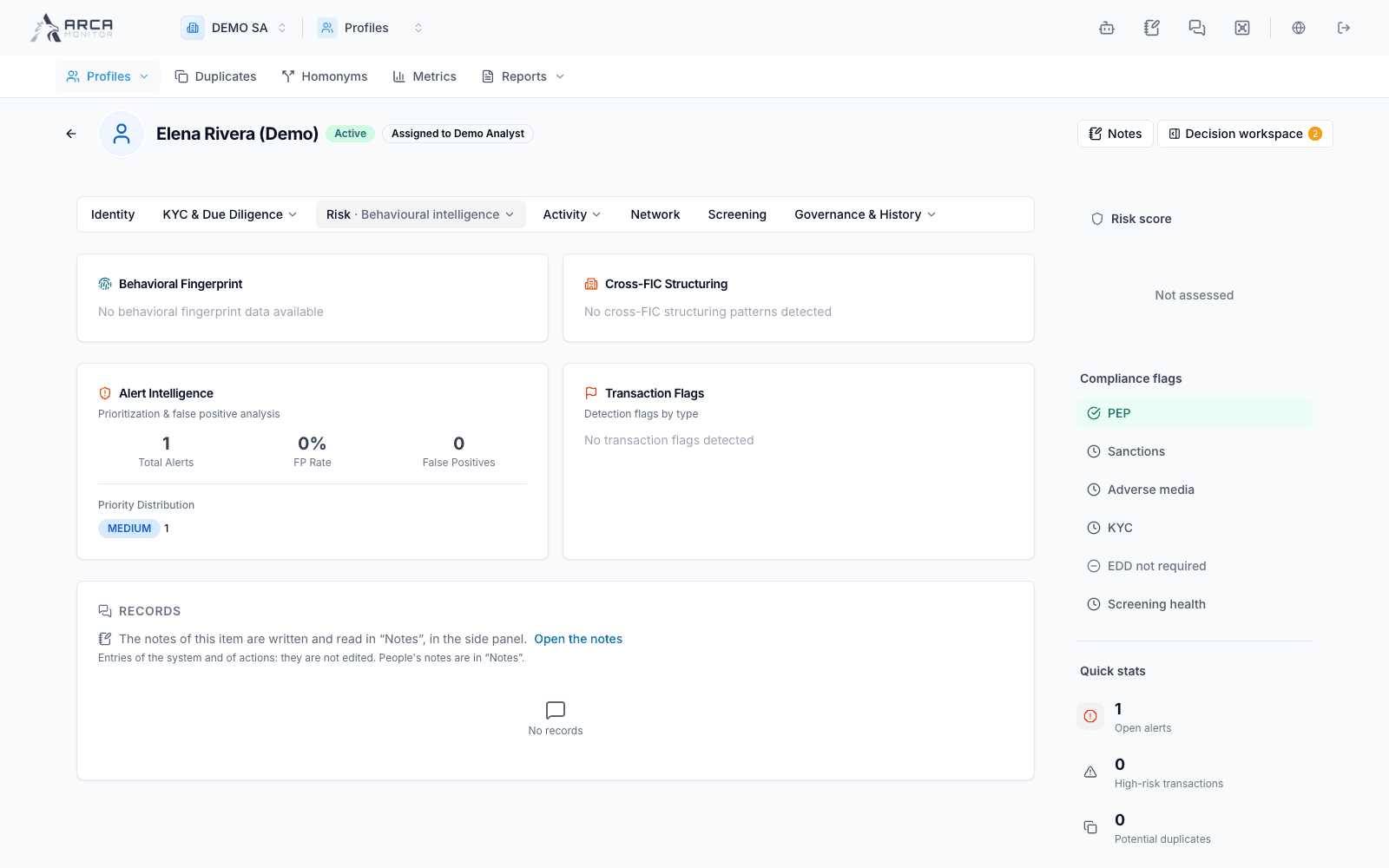
Use Behavioural intelligence for the additional context available in your workspace. Read the period and evidence behind a signal before including it in the review. Historical assessments inherited from merged records retain their source context and are not automatically the surviving profile’s current model result.
Request recalculation
When recalculation is permitted, use the available action and inspect the returned assessment. Verify version, inputs, and resulting effective risk. Recalculation does not itself resolve a screening match, verify a document, or record a payment decision.
Propose a governed override
- Confirm why the model result needs a supported adjustment under your organization’s process.
- Open the override proposal action when available.
- Enter the proposed effective score, reason category, justification, supporting evidence reference, and expiry required by the dialog.
- Review any material-downgrade notice and submit.
- Follow the proposal through independent approval. A submitted override is not yet the effective risk.
An authorized reviewer examines the proposal and records the available approval or rejection. If revocation is available later, review its effect before confirming: the effective risk returns to the model output. Inspect the current override status and expiry instead of relying on an older score screenshot.
Follow the profile’s review work
The decision panel, when exposed for the workspace, brings together status, recommended tasks, deadlines, and changes since the previous review. Open a task to reach the section that owns its evidence. A read-only task or disabled action should display the applicable restriction.
Check the assigned reviewer and review-status indicators in the profile header. Use the notes control for your observations and follow the recommended tasks to the section that owns the action. The current header has no separate Workflow control; a status badge is information, not a button that changes the status.
Review status is not payment authorization
Clearing or reviewing a profile does not authorize a transaction payment. Follow the selected operation’s decision and client confirmation in Transactions.
When an expected action is unavailable
Read the capability or state explanation and check whether the profile was merged into another. A merged-away record is historical and does not expose actionable decision work. Use the surviving profile or ask the responsible reviewer to handle the pending task.
For identity or compliance data corrections, use Governed changes, which has its own submission, approval, and application lifecycle.
Screens and controls
Governed assessment: no versioned assessment has run
Behavioural intelligence and recorded coverage