
Find profiles
Search the workspace, apply filters, and understand selection-based actions.
Open Profiles → View all. The list initially waits for a question: enter a search or apply a structured filter. Refresh is unavailable before there is a query to refresh.
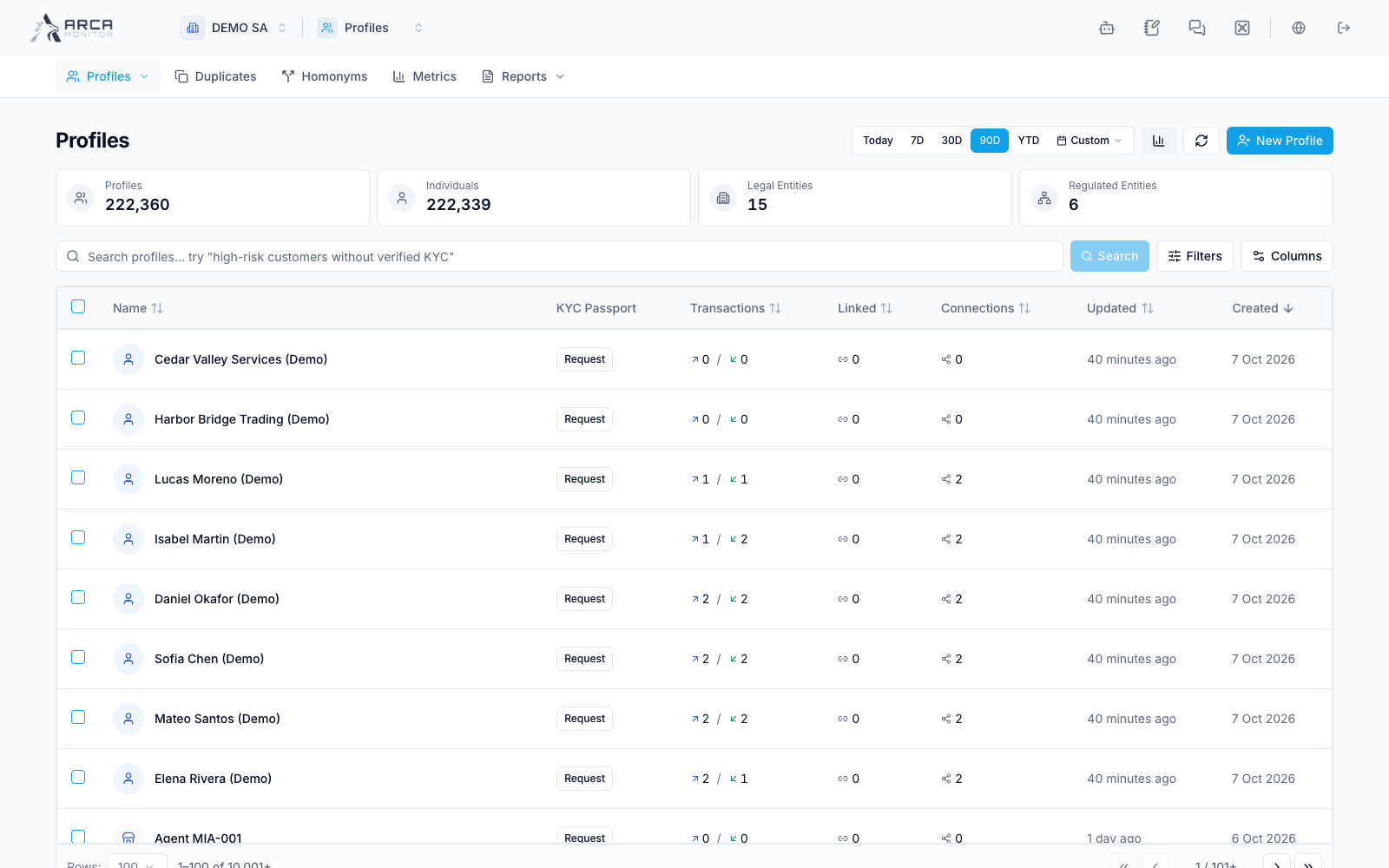
Search and inspect results
- Confirm the workspace, enter the known name or identifying information, and choose Search or press Enter.
- Review the returned candidates. The standard search bar selects its search mode automatically; manual mode controls are not normally displayed. Approximate name similarity is a reason to inspect a result, not proof of identity.
- Open Filters, stage the criteria you need, and choose Search to apply them. The results keep the previous scope until you apply the changes.
- Open the candidate’s profile and compare identification, country, contact details, and source evidence. Do not choose solely by the display name.
A name search looks across the stored profiles without the list’s default created-date window. With no search term, the period control scopes records by profile creation, initially the last 90 days. That period is not a window on transaction activity or the next KYC review.
Choose meaningful filters
| Criteria | Use |
|---|---|
| Business roles | Find senders, beneficiaries, agents, correspondents, or other roles. Selected roles combine as alternatives. |
| Risk, KYC, and CDD | Restrict the corresponding risk rating, KYC lifecycle, or due diligence level independently. |
| Screening | Find the screening condition offered by the filter. |
| Country and score | Narrow geography or risk-score bounds. |
| Data availability | Find profiles with or without email, phone, transactions, or owners where offered. |
| Activity count | Restrict transaction-count bounds. |
| Review dates | Find upcoming or overdue KYC review work using its dedicated criteria. |
The Other role filter includes profiles without the named roles, which can occur when identities originate from imported transactions. An absent business role does not prove that a profile has no activity.
Use column controls to choose relevant identity, compliance, activity, or network information. Sorting can change the order of approximate matches; check whether you are following relevance or a column order. If the platform asks for a narrower query or refuses a sort/page, apply a more specific scope.
Select before a bulk action
The header checkbox selects the current page. Selecting all matching explicitly expands to every matching profile across pages. Read the count and confirmation before using Re-screen, Report duplicates, or Request passport.
These actions request different work. Re-screening starts assessment; reporting duplicates starts identity follow-up; requesting a passport does not prove that one was issued. Inspect the reported results and any skipped or failed records afterward.
When the search finds nothing
Distinguish the initial “run a search” prompt from an executed query with zero results. Verify workspace, spelling, and applied filters. Look for a merged-record notice if a shared link opens an older identity. Start with Review a profile once you locate the correct record.