Authentication
ARCA MONITOR / USER GUIDE
Accept a workspace invitation
Join the workspace using the invitation sent to your email address.
Review the invitation
Open the invitation link you received. ARCA Monitor validates the link before displaying the workspace and assigned role. Check that the organization and email match what you expected.
Accept as a new user
- Enter your first and last name.
- Create a password that meets the requirements displayed on the form.
- Repeat the password in the confirmation field.
- Submit the acceptance form and wait for the confirmation.
- After the redirect, check the active workspace in the header.
Password requirements come from the platform’s active policy. Follow the form instead of relying on a fixed minimum from an older guide.
Accept with an existing account
If the invitation recognizes your account, it offers acceptance without the new-user registration fields. Review the invitation details and accept it. The platform then redirects to the dashboard.
JOIN A WORKSPACE
Resolve invitation problems
| Message or situation | Next action |
|---|---|
| Invitation expired | Ask the person who invited you to send a new invitation. |
| Invitation already accepted | Sign in with your existing account. |
| Invalid invitation | Ask the sender to confirm the invitation and recipient email. |
| Password rejected | Read the displayed requirements and confirm both password fields match. |
After joining, read Your first session.
Screens and controls
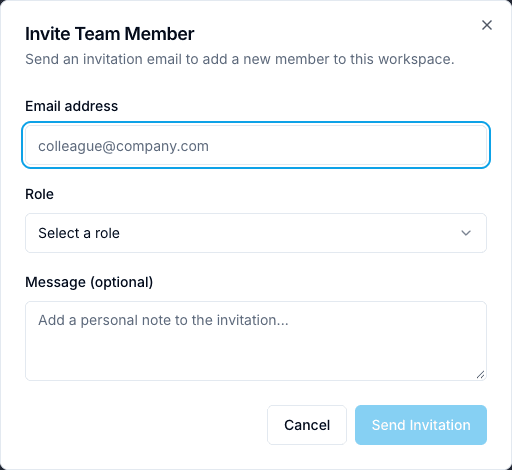
Invitation form used by a workspace administrator