Schedule recurring reports
Maintain recurring runs and inspect each execution separately.
Create a schedule
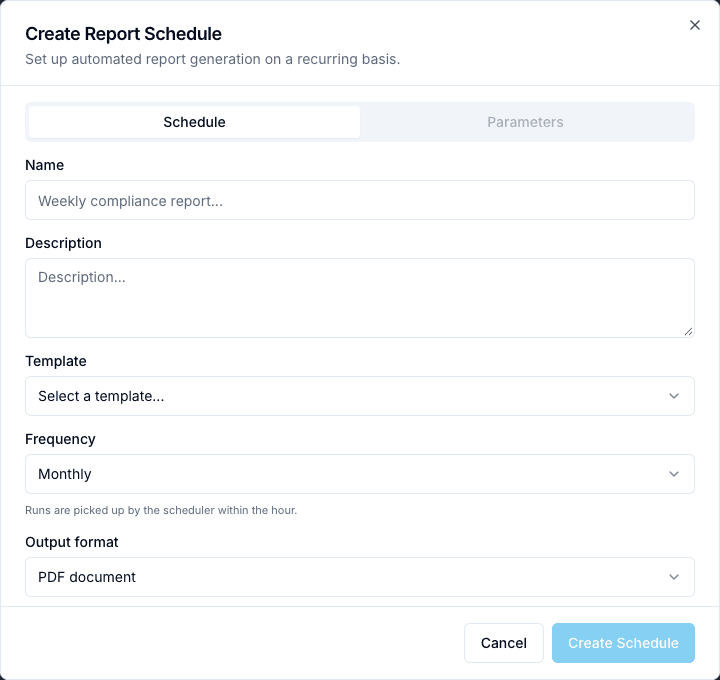
Open Scheduled and the new-schedule control. Select a template and give the schedule a recognizable name. Review the template’s Parameters as carefully as for an immediate report. In Schedule, select the available frequency and output format; the current choices are daily, weekly, monthly, quarterly, and yearly.
Confirm required fields and create. Inspect the resulting active state and execution information. This screen does not offer an interpreted custom cron schedule. A schedule stored successfully still depends on the platform’s scheduler and report workers running.
Operate a schedule
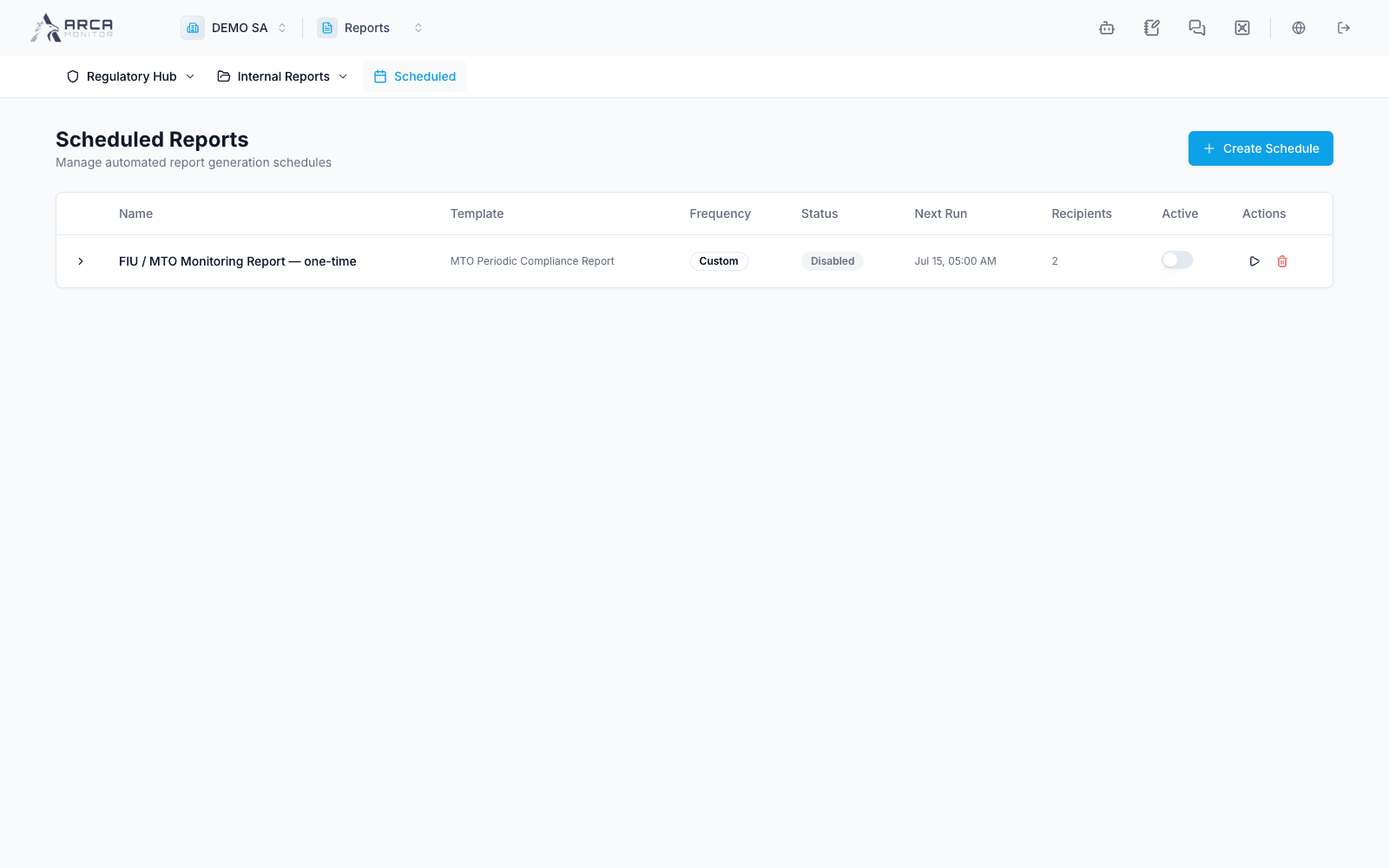
Use the active/pause control to manage future recurring runs. Run now requests an execution immediately; it is not a preview. Expand execution history and inspect the outcome and generated report. Follow the output in History until it completes.
If a scheduled run fails, inspect its error and template parameters. Resolve missing access or data before rerunning. Pausing a schedule is separate from cancelling a report already generating; use that report’s task controls for in-flight work.
Change or remove recurring work
Review the intended schedule before changing its active state or deleting it. Deletion asks for confirmation; verify it is the schedule you no longer need. Keep any completed outputs you still require in accordance with your retention process.
Email delivery is currently disabled. Even if a schedule stores recipient addresses, verify outputs in History rather than assuming delivery. Confirm a completed run and actual file availability, not only a configured recurrence.
Screens and controls
Schedule, template, output and recipients