Search and filters
Find the correct records and understand filters, selections, and bulk actions.
Open Transactions → View all to work with the transaction list. Search and filtering determine the results; checkboxes determine which records a selection-based action targets.
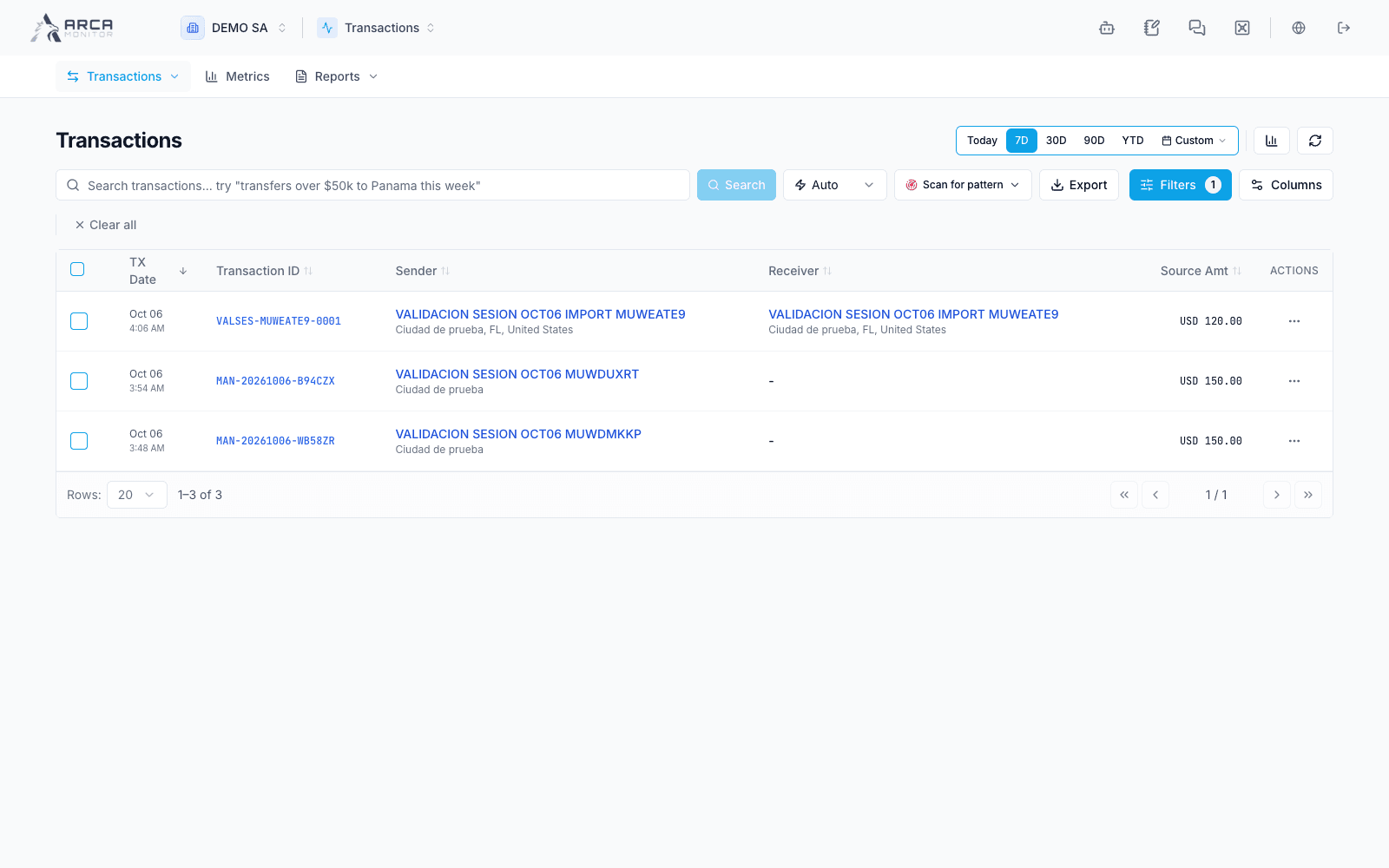
Find a transaction
- Confirm the workspace in the header.
- Enter the known reference or participant information in the search field. Use the available Exact, Fuzzy, or Phonetic search mode for your task. Approximate matches are candidates to inspect, not proof that two people are the same.
- Narrow the date range and open the filters for additional criteria.
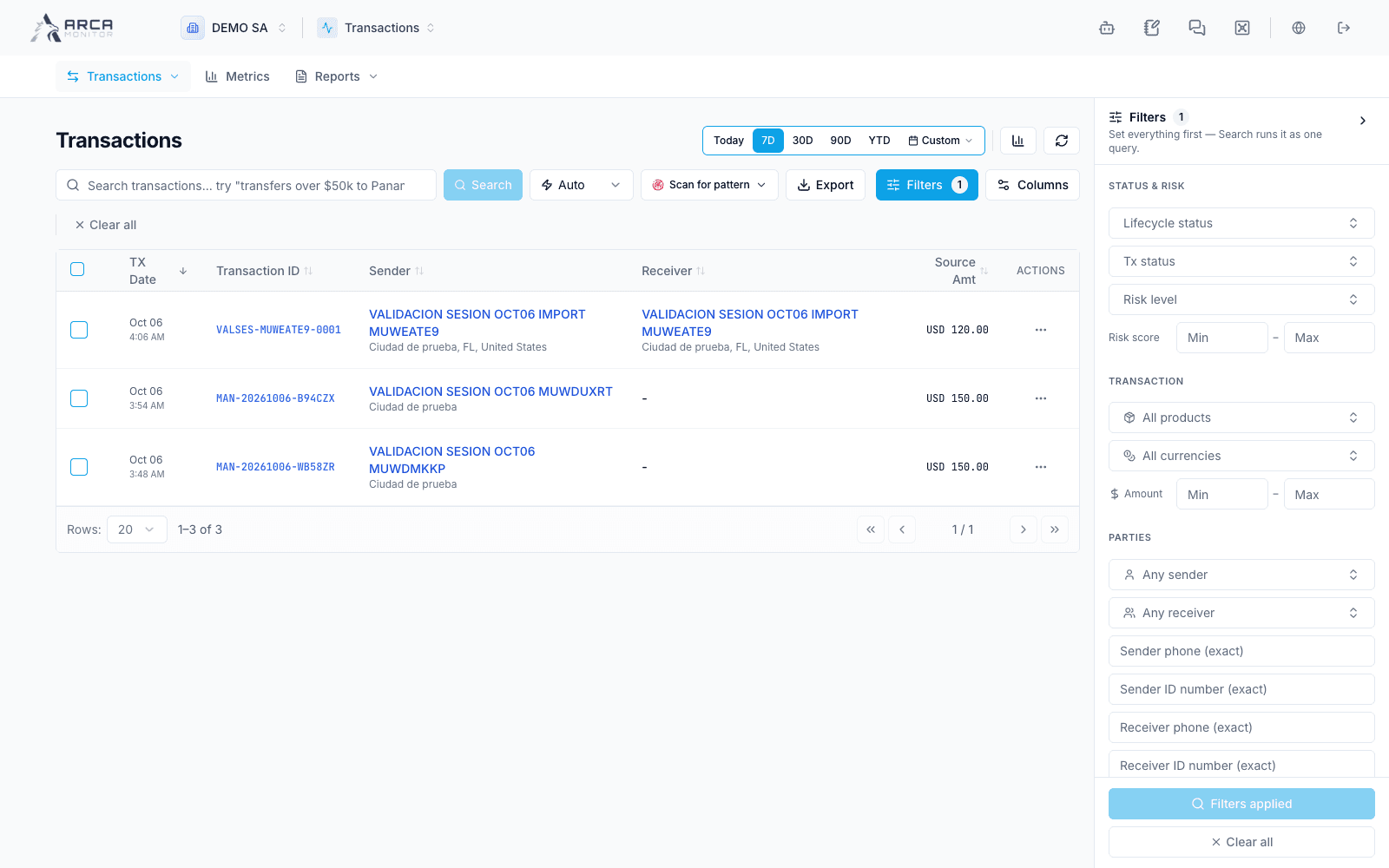
- Apply pending filter changes with Search. Editing the drawer alone does not apply the new criteria.
- Open the transaction reference and confirm the participants, amount, currency, and date in its detail.
For example, when a colleague provides a reference and a date, start with those two facts. If the record is missing, check the date boundaries and active filters before broadening to a participant-name search.
Use the right filter
| Filter | How to use it |
|---|---|
| Date and time | Limit the transaction period; check both ends of the range. |
| Product and currency | Restrict the kind of operation and the currency of its amount. |
| Origin and destination | Narrow the relevant countries independently. |
| Amount and risk score | Set lower or upper bounds where appropriate. |
| Parties | Select the sender or receiver you intend to review. |
| Phone or identification | Enter the full value in the corresponding exact-match filter and press Enter. |
| Lifecycle status | Filter the record’s review lifecycle. |
| Tx status | Filter the transaction’s operational status. |
Lifecycle status, Tx status and risk level are separate concepts. A flagged record is not equivalent to a confirmed payment failure; a cleared review record is not evidence of payment execution.
Make the list useful for your work
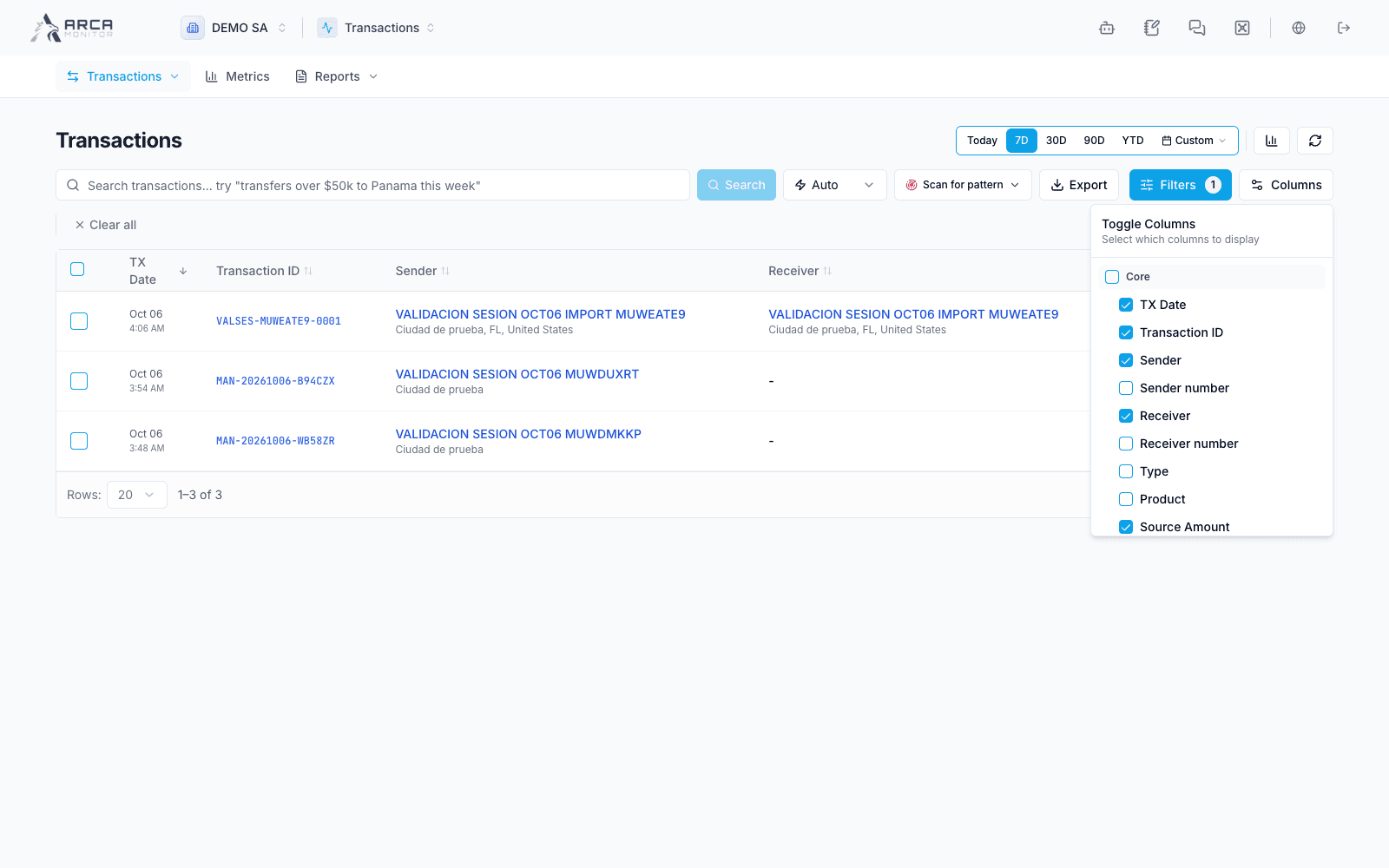
Use the column controls to show the information you need, such as participants, risk, compliance, or model results. Column preferences are stored in the current browser. A different browser may show a different arrangement.
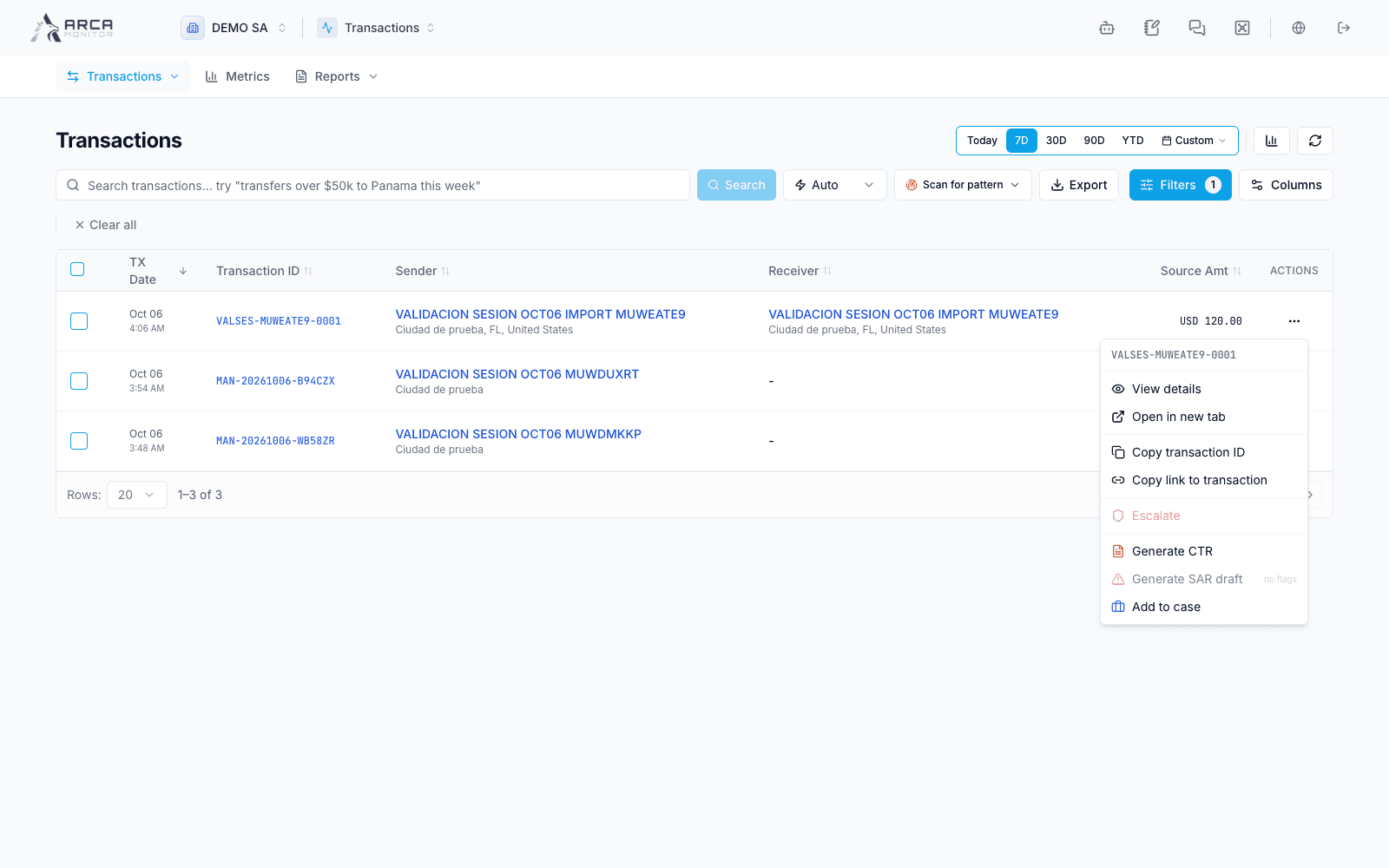
The row menu and right-click menu offer shortcuts such as opening details in a new tab, pinning a transaction, and copying its ID or link. Pinned records can remain available after filters change; a pin is a navigation aid, not a change to the transaction’s risk or status.
Select records deliberately
Check individual rows for a specific selection. Where the list offers all matching selection, that scope can extend beyond the current page. Read the selection count and the Workflow panel’s “acting on” message before confirming a bulk action.
Available workflow actions, including flag, clear, and escalate, depend on the server-reported eligible records. A disabled action is not an instruction to bypass the restriction. Row menus and the bulk panel may expose different actions.
Case and regulatory options depend on the corresponding applications and eligibility. An aggregated CTR combines records into one report; a bulk GTO CTR action creates separate reports. Review the creation dialog and resulting report records before considering that handoff complete. Generating a report is not confirmation of regulatory submission.
Export has a different scope
The list’s CSV and Excel export uses the active filtered results, rather than just the checked rows or the visible page. See Metrics, reports, and exports.
If a record is missing
Remove unrelated filters, verify the workspace and transaction period, and check Import history if the record came from a file. A successful file upload does not mean every row became a transaction.
Screens and controls
Filter panel: review criteria before Search
Columns for the current working view
Row actions keep the selected operation as their target