Import history and recovery
Read import outcomes and safely follow a continuation or cancellation.
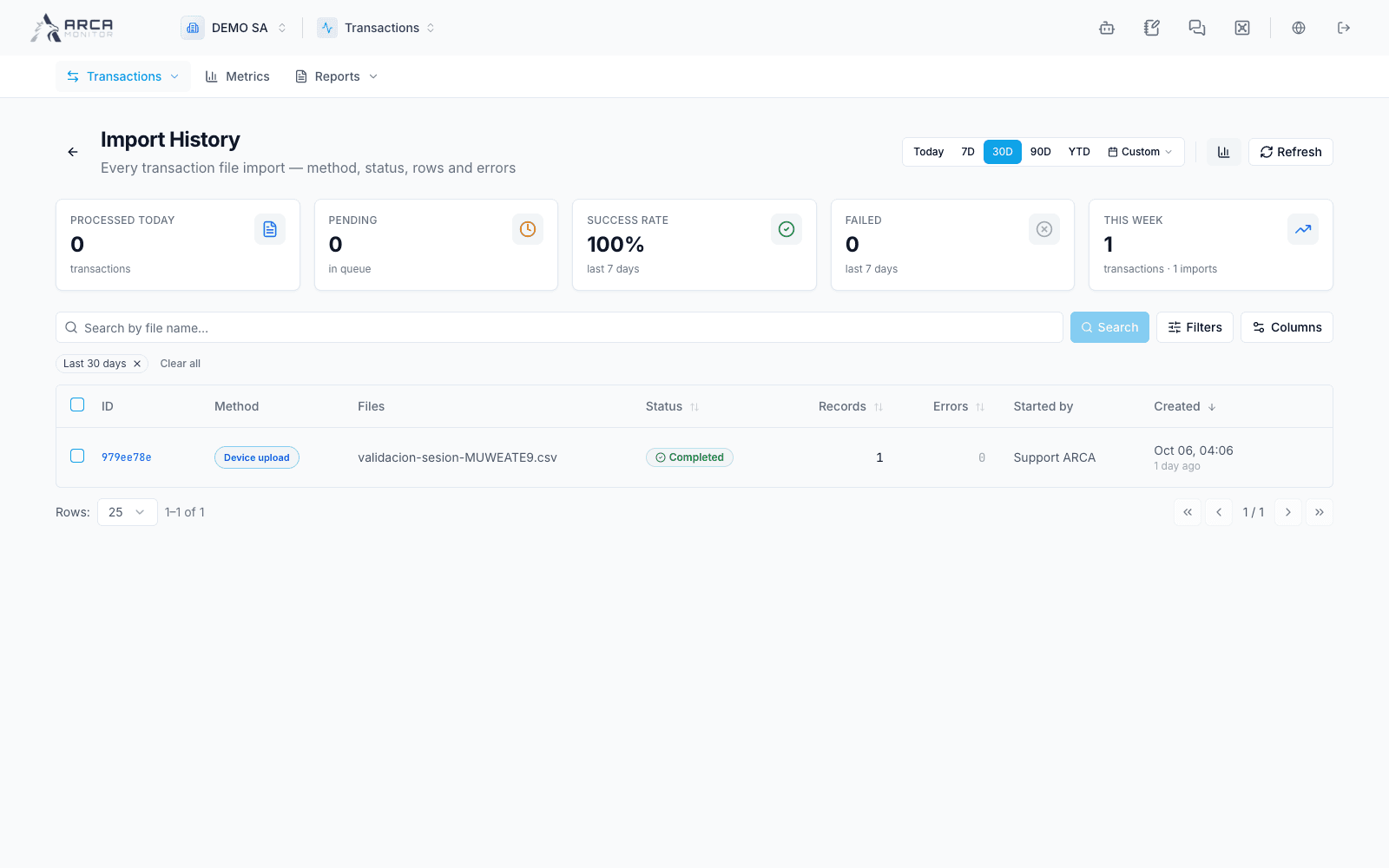
Open Transactions → History to locate a file import, then open its detail. Use this page to explain a run’s outcome before attempting another upload.
Read the run
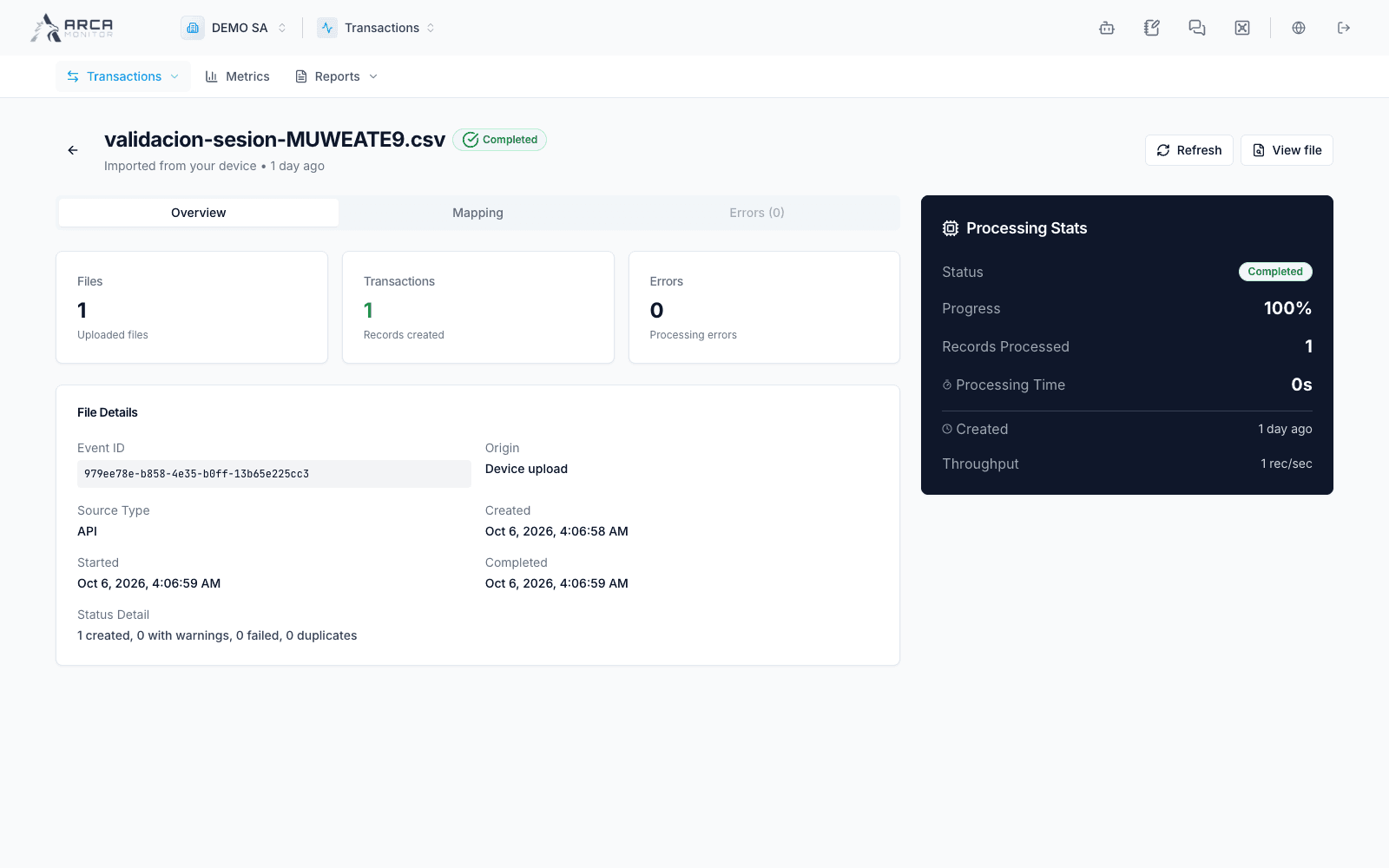
Check the original filename, current status, timestamps, and row counts. Distinguish created transactions, duplicates, and rejected or incomplete data where those counts are shown. A percentage describes progress; it does not replace the final outcome.
The detail provides:
- Overview: the run’s progress and results.
- Field mapping: the mapping recorded for that run, including resolved or operator-provided mappings when available.
- Errors: row-level failures when the run recorded errors. This tab is disabled when its error count is zero.
An older run may not have a recorded mapping. A run that has not read its headers yet may not have one available either. Do not infer a mapping from an empty panel.
Investigate a rejected row
Read the row number and error message against the original source. Check required values, date or amount formats, product values, and participant data as applicable. Distinguish an invalid row from a processing interruption affecting otherwise valid rows.
Preserve the source file and the import reference when handing the issue to an administrator. The run’s reported results are more useful than repeatedly uploading the same file without understanding its failure.
Continue an unfinished import
When Continue import is available, open it and read the proposed plan before confirming. The plan can describe:
| Plan | What is processed |
|---|---|
| Failed rows | Rows rejected by the previous run. |
| After the last reached row | The remaining part after the saved position. |
| Unfinished parts | Recorded portions of a parallel import that did not finish. |
| Whole file | The full source when no usable row-level recovery record is available. |
The whole-file fallback can take as long as the original import. The dialog explains how previously imported rows are handled. Check the new run’s counts rather than assuming that “continue” always means a small retry.
If you choose to allow incomplete rows, review the consequence: acceptance with flags is not correction of the missing information.
A successful continuation request creates a new import run. Open its link, follow its progress, and use the lineage links between the original and the new run. “Queued” means accepted for processing, not finished.
Cancel an import
Use Cancel import only when you intend to stop the run. Review the target and any reason field in the confirmation dialog. Rows already imported are kept; cancellation is not an undo of the entire dataset. Check the resulting status and counts after the request.
For bulk actions, read the result for each import. Some selected runs may be skipped or refused even when others change successfully.
When the source is no longer available
A continuation needs a readable retained source. If the platform reports that the file is gone, locate the original source and follow the instruction to upload it again. Review the previous run first and verify the new results for duplicates and created records.
For a run that appears stuck, inspect its status and Transactions → Pipeline where available, then contact the responsible administrator with the import reference and the observed error. Do not assume that a quiet screen means processing has stopped everywhere.
Screens and controls
Import history and recorded outcomes
Import run details and verification of recorded results