Pre-registration
Work with agents, branches, correspondents, and financial-entity registers.
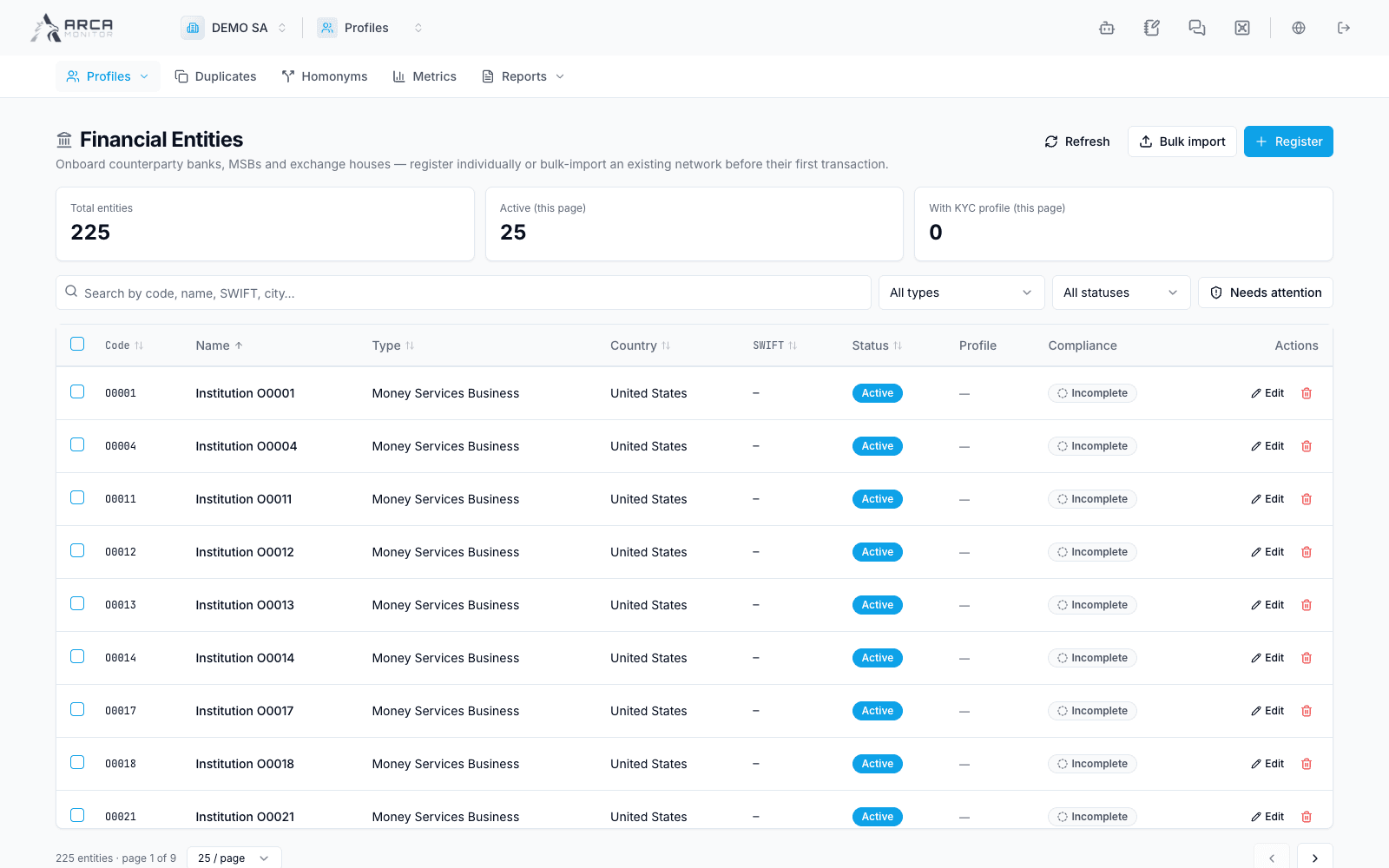
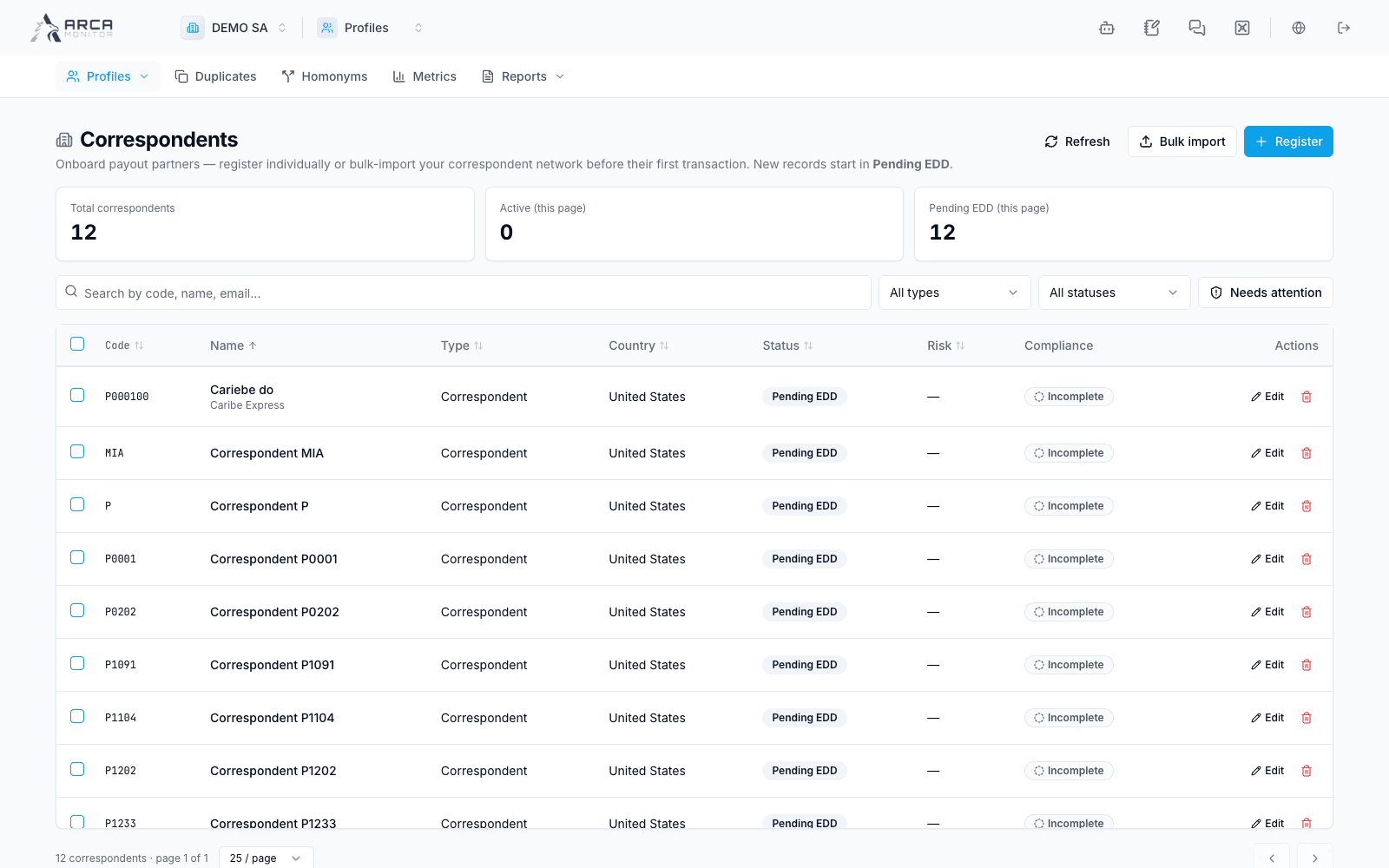
The Profiles menu provides operational registers for Agents / Branches, Correspondents, and Financial Entities. Use them for counterparty-specific information. Use the linked profile for identity, risk, screening, and due diligence.
Find the operational record
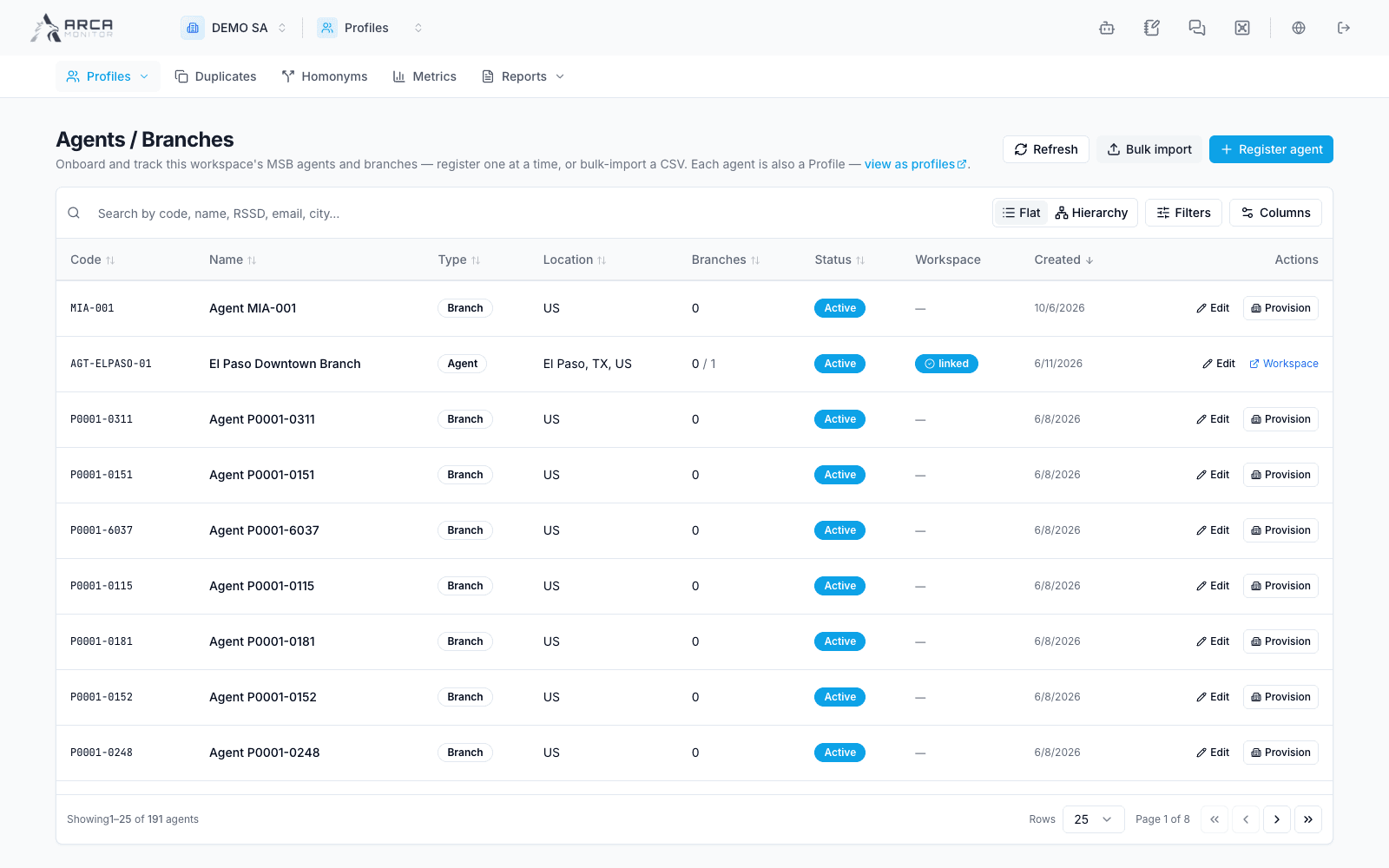
Open the appropriate register and narrow its search and filters. Check the code, name, entity type, location, and status before opening or editing. The agent register offers a flat list and a hierarchy view so you can distinguish agents, sub-agents, and branches.
Status values such as Draft, Submitted, Approved, Rejected, and Active describe the pre-registration lifecycle. Do not treat a submitted or approved entry as active unless the record says so. These states are also separate from its profile’s KYC status.
Use the register’s registration action to reach the appropriate entity wizard. Follow the controls actually offered for edits or other state changes; a lifecycle value in a filter is not necessarily an action you can execute from that screen.
Import a register with CSV
- Choose Bulk import in the relevant register.
- Download that register’s template. Templates differ by entity, so do not reuse a transaction import template.
- Populate the CSV with the required identifiers, relationships, and other template fields. Review the option controlling profile creation before upload.
- Select the
.csvfile and validate it. - Inspect the valid-row count and row errors. Correct and upload the file again, or deliberately choose to commit only valid rows when offered and appropriate.
- Confirm the commit, follow the reported result, and refresh the register to verify the records and their profile links.
Validation is not a committed import
The preview and validation stage reports what can be processed. The commit action is a separate step. Conversely, a failed response after commit needs investigation before sending the same batch again.
Profile and workspace are different records
Some agent rows offer Provision workspace. This creates or provisions a separate working organization; it is not the same as creating an identity profile. Use it only when provisioning that workspace is part of your responsibility, and review the dialog’s plan and requirements. The server can refuse the action because of the record’s state, permissions, or missing configuration.
After an import or registration, confirm which operational entry, profile, and workspace actually exist. Do not infer all three from one success message.
Troubleshooting
For row errors, check the template and source data rather than changing entity type to bypass validation. If a parent relationship is missing, verify the parent code and register. For permission or provisioning failures, retain the entry code and displayed message for the responsible administrator.
Continue with Review a profile and complete the due diligence associated with the operational entity.
Screens and controls
Agent roster
Correspondent roster
Financial-entity roster