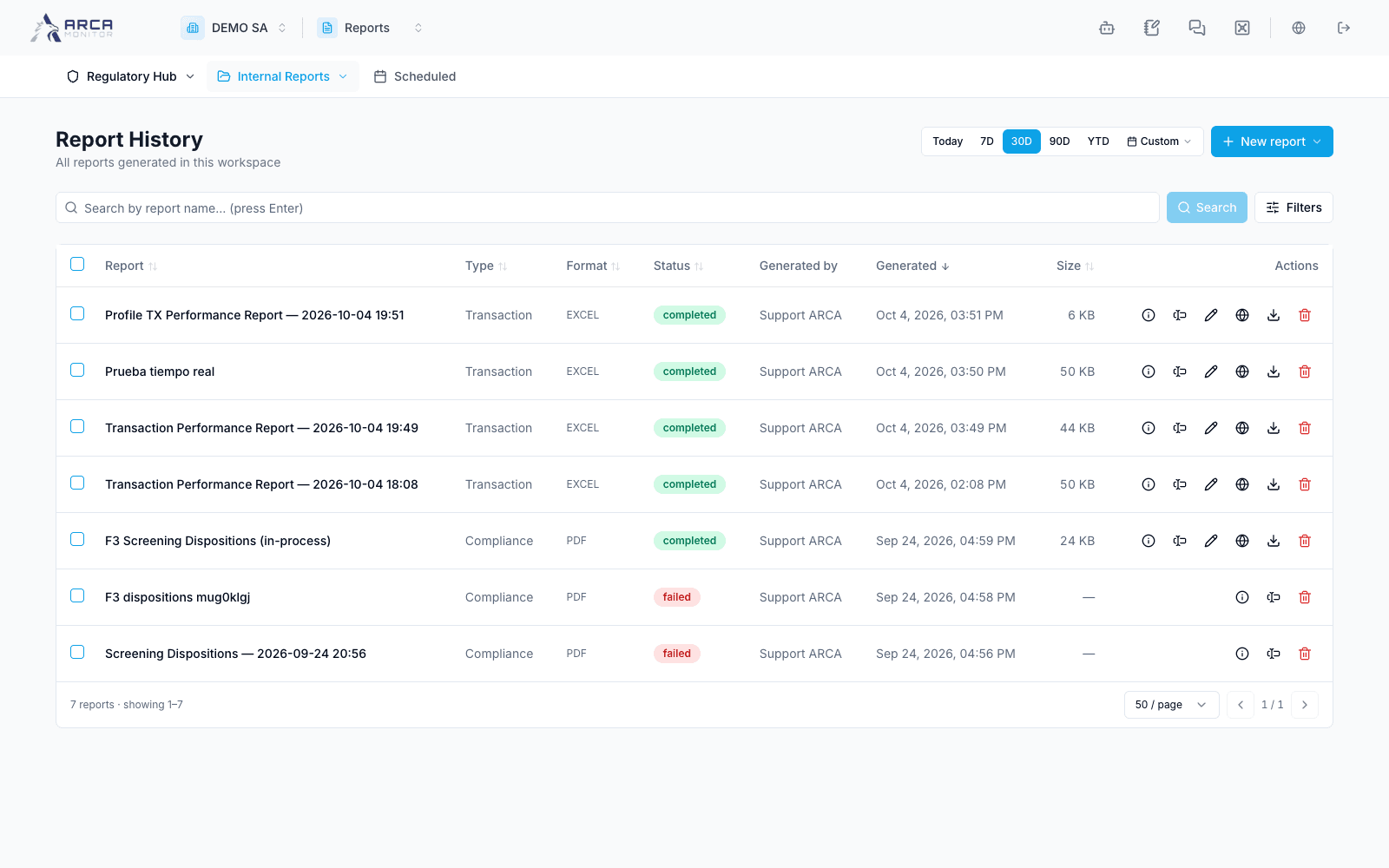
History, downloads, and revisions
Find generated outputs and recover failed or interrupted work.
Locate an output
Open Internal Reports → History. Set the header date window, stage search/type/status filters, and apply Search. Inspect active chips, page size, and ordering. History covers workspace report records; the app-specific history may show a narrower population.
| State | Next step |
|---|---|
| Pending / Generating | Inspect task progress; wait or cancel if appropriate. |
| Completed | Open or download and verify the file. |
| Failed / Cancelled | Inspect task details and error; use Regenerate when offered. |
| Expired | Inspect availability and generate a fresh output if needed. |
Open task details to see timing, origin, and failure/cancellation information. After Cancel generation, verify the recorded state. After Regenerate, follow the resulting generation instead of assuming the previous file changed immediately.
Manage outputs
Use row actions to rename a settled report or open an available editor. For an editable report, review changes and preview, then save a revision and verify it. Distinguish the original generated file from an edited export when downloading or sharing; an editorial revision is not a correction to the source transaction or profile.
For bulk download, inspect the selected completed rows and wait for the files. For deletion, read the in-app confirmation and verify the returned result; partial failures can occur. Delete only outputs you intend to remove from history, following your workspace’s retention process.
If a download fails, check the report state and retry the file action. Do not describe an opened preview or a clicked button as a successfully retained file until the download exists.